For most small and mid-sized practices replacing an ageing desktop system, cloud practice management software is the better default: nobody on your team has to own a server, records are reachable from every permitted device, and hardware failure stops being your emergency. On-premise still makes sense when your internet connection is truly unreliable, when a device or a billing link cannot move off the local system, or when you have real IT capacity and data that must stay on hardware you control. Neither architecture is secure by itself. What decides that is who takes backups, who tests a restore and who removes a departed employee's login.
The rest of this guide is written for the person who has to sign the decision: an office manager or practice owner whose old program still runs, but whose vendor has gone quiet, whose server is well past its warranty, or whose new associate wants to read a chart from home. We sell a web-based product, so we have a side. To keep that honest, we spell out where the cloud is weaker and where you should stay put.
Name what you actually have before you compare anything
"Cloud vs on-premise" hides a third option, and it is the one many practices are on without realising it. The risks of each are different enough that the comparison changes.
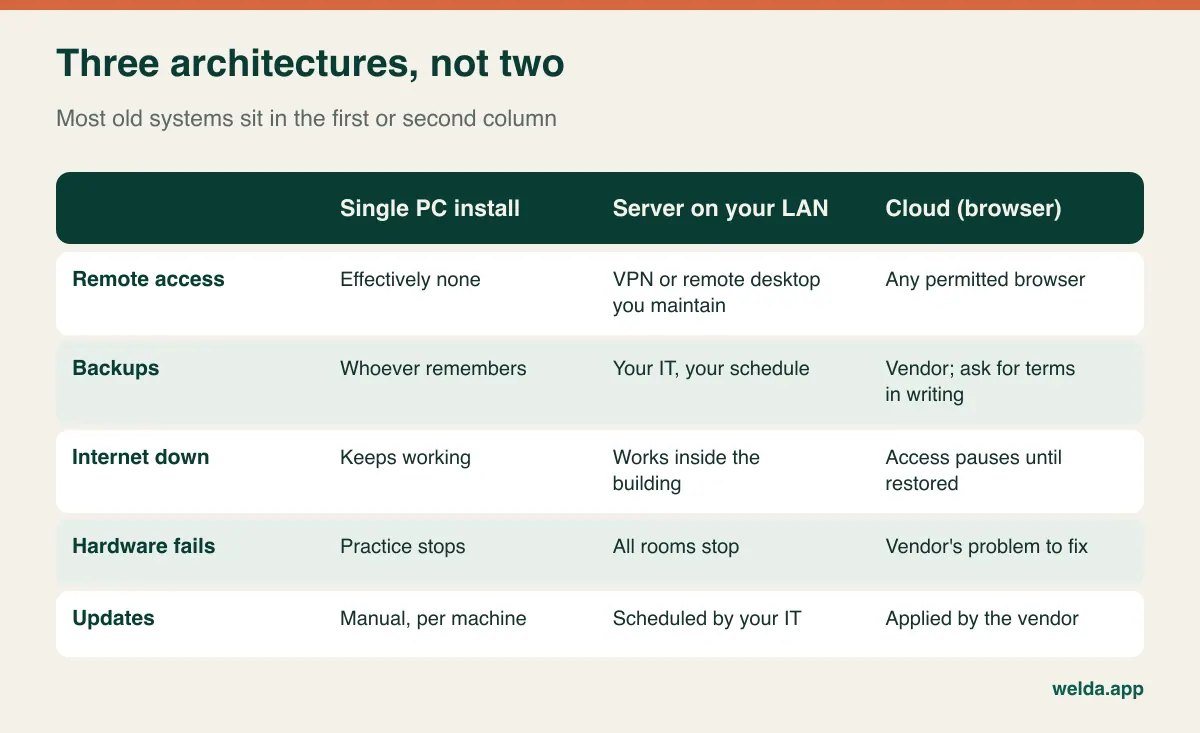
A single PC install keeps everything on one disk, usually at the front desk. A LAN server gives every room fast access, with the catch that one failure halts them all. The third pattern looks like cloud and is not: a hosted or remote desktop layer on top of the old program, reached over VPN. If the server still belongs to you, you still patch it, back it up and replace it, and you have also opened an additional door to it from the internet. Vendor-hosted versions of old desktop software are a further variation: they move the hardware problem to someone else, but often keep the old interface and its version-upgrade habits.
So the first question to any vendor is plain: whose server is this running on, and who repairs it at 8 a.m. on Monday? If you want the broader background, see our explainer on what cloud software is.
The Monday-morning test: where the access difference shows up
Feature lists say "remote access." Your week says something more specific. Run these three situations against your own practice.
The clinician off site. A patient phones on a Saturday after a procedure, and the on-call clinician wants to check an allergy note. On-premise, that means a working VPN on a personal laptop, or waiting for Monday. In the cloud it means a browser and a login. The access itself is the easy part; the question that deserves attention is whether you can limit who sees what and see afterwards who looked.
The second location. Opening a satellite office with a separate install creates two patient databases. Someone will be registered twice, and a patient who moves between sites will arrive with half a history. Linking sites on-premise is possible, with a site-to-site connection or replication, but this is a real project with a real owner. A cloud system treats a second location as configuration.
The tablet in the treatment room. Consent forms, photos and bedside notes are often why a practice starts this conversation. Old Windows software rarely welcomes a tablet. Browser software removes the install question, but it does not guarantee a usable screen, so test it during the demo on the actual device you intend to buy.
If none of these describes you, say a solo practitioner on a single machine with no need to look at records elsewhere, then access alone is no reason to migrate. Keep reading for backups and costs, since those may still decide it.
Backups: the number nobody asks for
Almost every practice says it has backups. The useful questions are narrower. How much work can you afford to lose, and how long can you afford to be down? IT people call these the recovery point and the recovery time, and they are worth asking about by name, because the words "we back up nightly" answer only part of the first and none of the second.
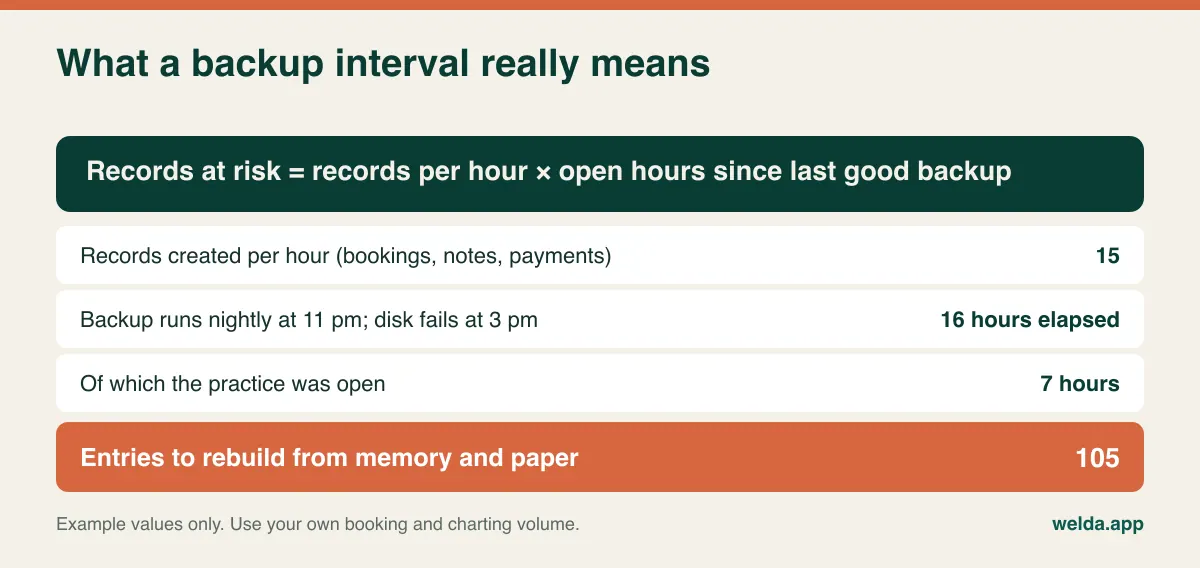
Add the failure modes that nobody plans for. An external drive that stopped syncing months ago without anyone noticing. A backup drive permanently attached to the server, so ransomware encrypts it along with everything else. A restore procedure known only to a contractor who has moved on. Fire or theft taking the server and its backup disk together because they share a room. The well-known rule of thumb, three copies on two kinds of media with one kept off site, exists because of these stories. Restoring to a spare machine once a quarter is what turns a backup from an assumption into a capability.
In the cloud the work moves, and so does the risk: you are now relying on someone else's process. Do not accept "the vendor handles it" without detail. Ask how often backups run, whether a single deleted record or a single day can be recovered, how long a recovery usually takes and what you receive if the contract ends. Ask us too, and get the answer in writing. For a fuller framework, read our guide to business data security and backups.
What really stops when the internet goes down
This is the strongest objection to cloud software, and it is a fair one. No connection means no calendar and no charts until the connection returns. Records are not lost, because they live on the server, but the front desk is working blind in the meantime. Any comparison that waves this away should make you suspicious.
It is also true that on-premise is less independent than it used to be. Online booking, text or WhatsApp reminders, e-invoicing, card terminals on IP, insurance clearinghouses, and even your phones if they run on VoIP all need a connection. What a local install really keeps during an outage is the in-building schedule and chart. That is valuable, but it is smaller than "everything keeps working."
To size the risk, look at your last twelve months. How many outages did you have, and how long did they last? A few short ones with a plan in place is manageable. Frequent, long outages in a rural location with no second provider are a legitimate reason to stay on-premise, and we would rather you heard this here than discover it in your first month.
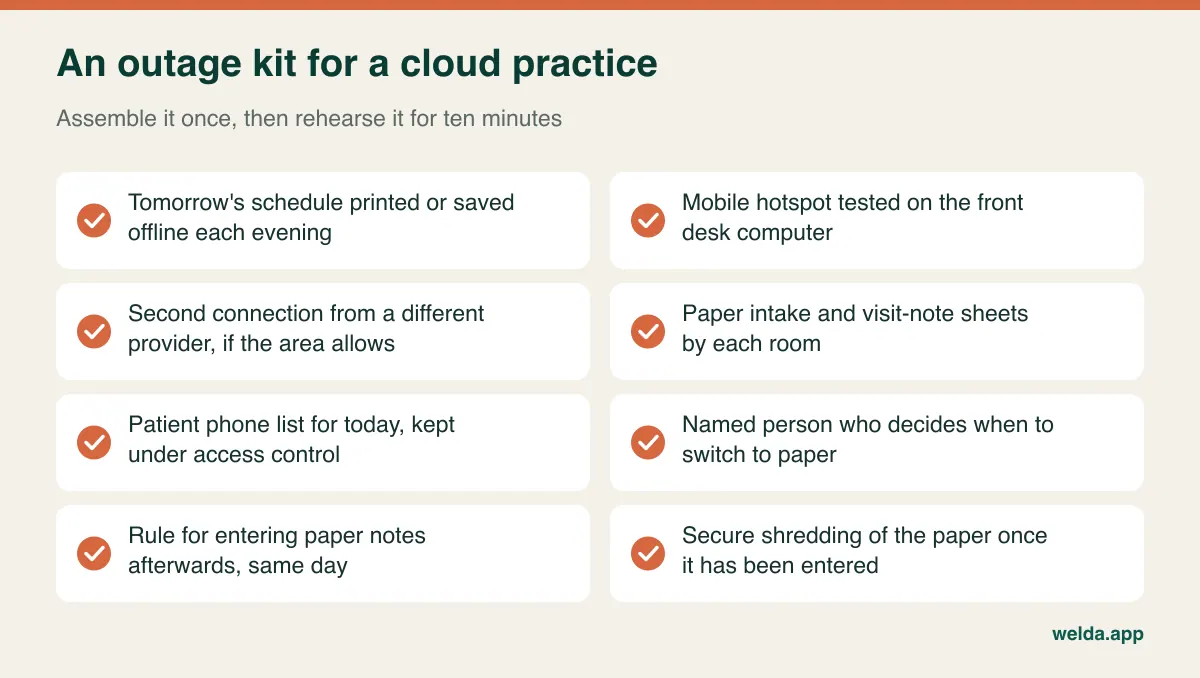
One more scenario belongs on the list: your line is fine and the vendor is down. Ask how status updates are communicated, how support is reached, and what the provider's history of incidents looks like. A vendor that answers these calmly is telling you something useful.
Compliance travels with you in both models
Rules differ by country, so treat this as a map rather than advice, and check the specifics with counsel or your professional body. Health data gets special treatment almost everywhere: under the EU and UK GDPR it is a special category of data, in the US HIPAA governs covered entities and their business associates, and Canada, Australia, Turkey and many others have their own regimes.
The common thread is that hiring a vendor does not hand your duties to the vendor. In a GDPR setting you remain the controller and need a data processing agreement; in a HIPAA setting you need a business associate agreement before protected information goes to a cloud provider. Data location can matter too, since some rules restrict transfers across borders. Ask where data is hosted and who the sub-processors are, and get it in writing.
On-premise does not sidestep any of this. It only means the safeguards are yours to perform: encryption at rest, patching, physical security, individual logins, access logs and offboarding. A server under the reception desk, on a shared login, running an out-of-support operating system, is the opposite of the control that "our data stays in-house" suggests. We go further into day-to-day safeguards in our article on patient data security in clinics.
Also check record retention. Whichever way you go, the legal duty to keep old records usually outlives both your software contract and your old system. Decide where those records will live after the move before you cancel anything.
Compare five-year responsibility, not licence against subscription
"We own our software, so it is free" and "subscriptions never end" are both half a calculation. Build one five-year scenario, write down what you expect to happen, such as one hardware refresh, one new location and a few new hires, and price every option against that same scenario.
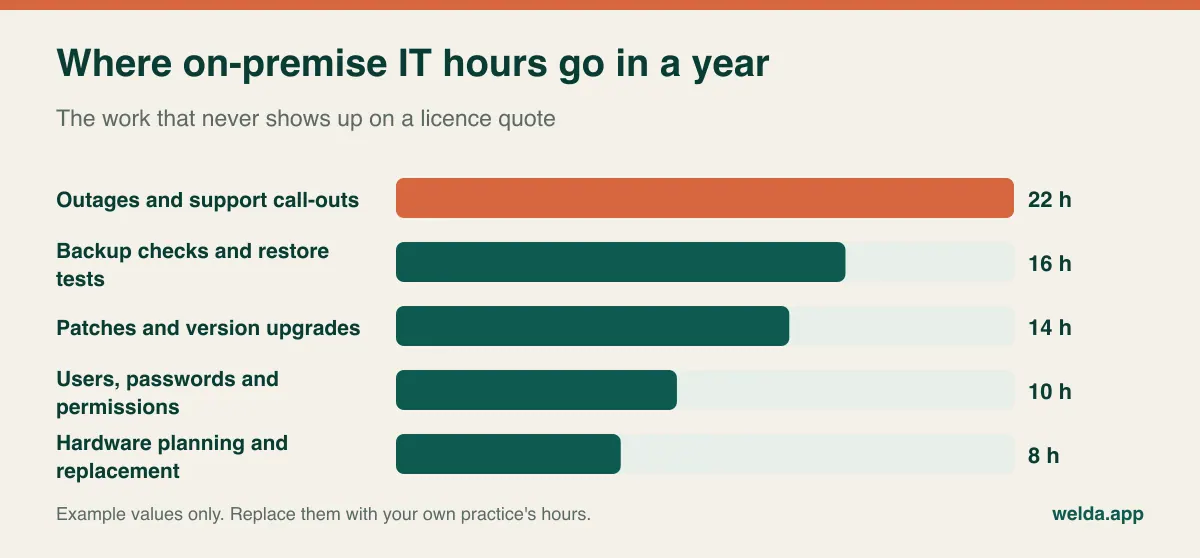
For on-premise include the licence and annual maintenance; server, UPS and backup media with their eventual replacement; operating system, database and security software; support call-outs; paid version upgrades; extra seat or site licences; and the hours spent by whoever looks after all this. Those hours are the line most comparisons skip.
For cloud include the subscription with its seat, location and module limits; message volume; photo and document storage, which can change the picture for dermatology or aesthetic practices keeping image archives; onboarding, data migration and training if they are billed separately; adequate internet and a backup connection; and the terms for exporting your data when you leave.
Three questions expose most hidden costs on either side. What happens to the price when we add a location? Which things are charged per use? What does leaving cost? Ask for the answers in the same format from everyone. Our article on clinic management software cost walks through building that sheet. We will not quote a figure here because any honest number depends on your locations, users and modules; for Welda CRM that is settled in a free consultation.
Getting your data out of the old system is the real project
This is where architecture debates meet reality. A program that has been in use for ten years is not one tidy table, and the answer to "can we migrate?" is rarely a simple yes.
- Exports that are not really exports. Many old systems will hand you names and phone numbers in a spreadsheet while clinical notes and balances remain inside. If the vendor still exists, ask for a complete database extract and find out what it costs. If the vendor has vanished, show the database files to whoever is doing the migration before you commit.
- Attachments. Scans, images and consent forms typically live in folders linked by file path. Moved folders mean broken links, and you only notice when you need the document.
- Duplicates. Years of front-desk typing give you the same patient under three spellings. Clean up before migrating, while the old system's history is still there to guide you.
- Half-finished business. Open balances, unused package sessions, recurring appointments and recall dates are what patients will argue about. If they cannot migrate cleanly, plan manual opening entries for go-live day.
- Local ties. Imaging devices, lab interfaces, claims submission and e-prescribing may depend on the old setup. Before anything else, identify what will take over each one. For a practice billing insurers directly, this alone can settle the decision.
Keeping the old system read-only for a period and moving only active patients is a reasonable compromise when full migration is impractical. This section also holds a lesson for the purchase ahead: ask about the exit terms before you sign, because you are choosing your next migration too.
Where should your practice land?
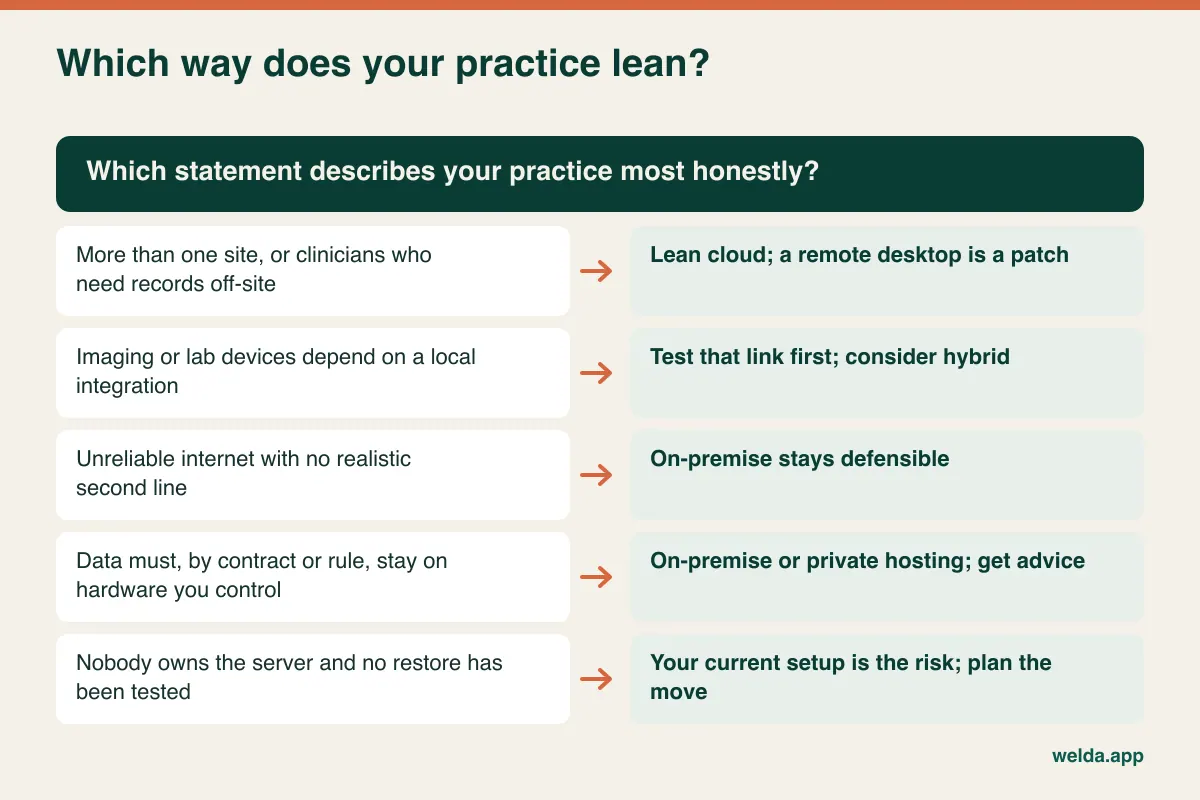
Cloud is a strong fit for practices with two or more locations or plans for them, clinicians who work in several places, no in-house IT, or an old program that is keeping you on an outdated operating system. Appointment-led practices such as physiotherapy, counselling, dietetics and aesthetics, where the main workload is calendars, client records and sessions, tend to have the simplest transition.
On-premise remains a sound choice if you depend on a tight local device integration that has no cloud equivalent, if the connection cannot be fixed, if a contract or regulation demands that data stays on your own hardware, or if you have real IT support that genuinely tests restores. A contented solo practice with a supported program and a tested backup has no obligation to chase a trend. It is enough to review the decision whenever that machine or vendor's support is up for renewal.
Hybrid setups exist, mainly in larger organisations. In a small practice they can mean two systems to run and a sync problem to adjudicate. If a vendor proposes one, ask them to show you which copy wins when the same record changes on both sides during an outage.
What to send vendors before the demo
A demo follows the vendor's script. Sending questions in advance means the answers can be compared side by side, and vague replies become visible.
- Where do the application and data run, in which country, and on whose infrastructure?
- How often do backups run, and can you restore one record or one day? How long does it take?
- What is the procedure during an outage on your side or ours? Which support channels are available, and when?
- Can we define roles per user and see an access log per record?
- Will you sign the agreement our jurisdiction requires (DPA, BAA or equivalent)?
- Will you run a trial import using a sample of our data, and tell us which fields do not carry over?
- If we leave, in what format and how quickly do we get everything, including attachments?
- Can we test our own booking flow on our own front-desk computer and tablet?
For an on-premise quote, add these: how many more years will this version be supported, which operating systems does it require, how are upgrades charged, and who performs them? A product near the end of its support life simply postpones this decision by a year or two, at the cost of another migration.
Cutting over without closing the doors
The dangerous period is not the import itself. It is the days when two systems are both open and staff are unsure which one is correct.
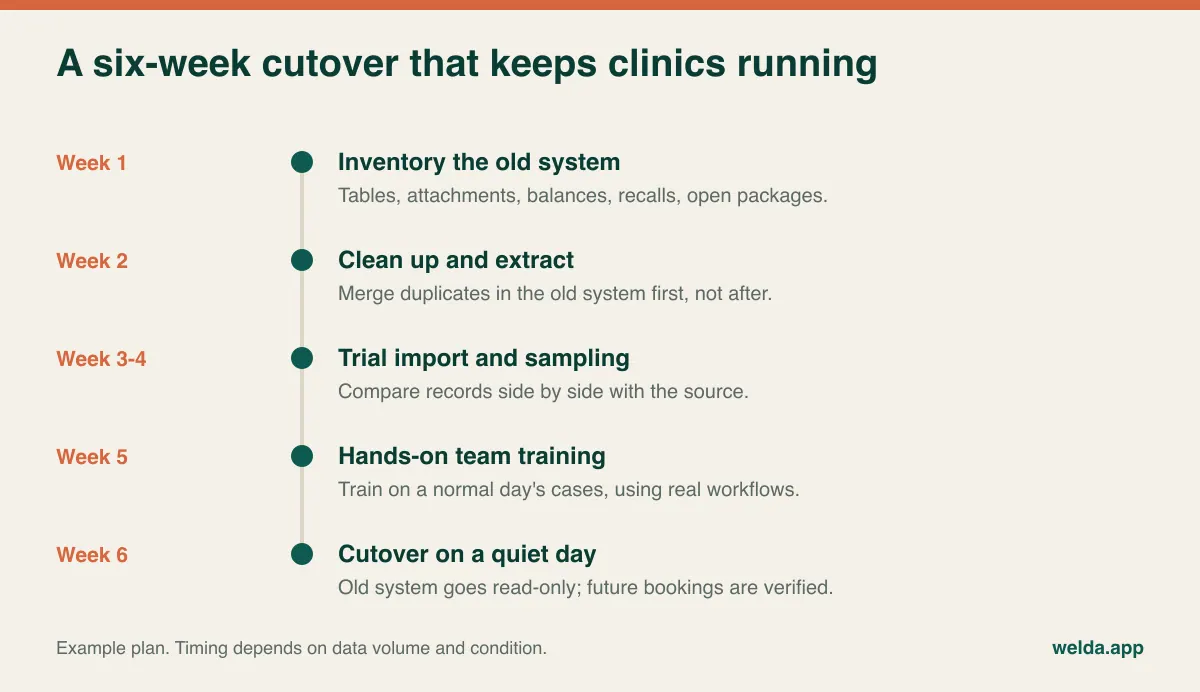
During sampling, compare records side by side with the source and choose awkward ones deliberately: long histories, open balances, package users, patients with duplicates. A matching total row count says very little. Check future appointments separately, since that is where a mistake reaches a patient first. Avoid scheduling go-live on top of a clinician's leave or a busy season, and name one person who collects questions during the first two weeks. Train clinicians as well as the front desk, because a system only the receptionist uses becomes an expensive calendar.
Where Welda CRM fits, and where it does not
Welda CRM is on the cloud side of this decision: web-based, no installation, used in a browser on computers and tablets, with several devices able to work at the same time. It brings appointments, patient records, multi-session packages, WhatsApp reminders and payments together, with encrypted health records, role-based permissions, GDPR/KVKK consent management and an audit log of who accessed what. Migration of your existing client and appointment data is part of setup. If you are weighing cloud vs on-premise practice management software, those are the facts on our side of the table.
Now the limits. If your connection drops, access pauses until it returns; your records stay intact, but our product pages list no offline mode, so the outage kit above applies to you too. There is no on-premise edition on those pages either. We do not list insurance claims submission, HIPAA-specific commitments, e-prescribing or lab and imaging integrations. If any of those are essential, tell us at the outset, or keep them in the system of record that handles them. Welda's product pages also do not spell out backup frequency or recovery times, so ask us that same question from the list above and get a written answer.
If that fit looks right, book a free consultation and we will talk through how your practice runs and what your current system holds. You can also try Welda's cloud practice management software free for 7 days on your own devices.
Frequently asked questions
Is cloud practice management software more secure than on-premise?
Not automatically. Cloud moves physical security, patching and backups to a vendor, who may do them better than a small practice can, but you still have to vet that vendor and manage your users. On-premise gives you full control and full responsibility. Judge the actual controls in place rather than the label.
What happens to my data if the internet goes down?
With web-based software the data stays on the server, so a local outage does not destroy anything. You lose access until you reconnect. A hotspot or second line, a printed schedule and paper notes to enter later cover most short outages.
Can I move my data out of an old desktop system?
Usually at least the core records, but the scope depends on the old program and on your access to its database. Ask for a trial import on a sample, covering notes, attachments and balances, before you rely on it.
Do I need to change anything about my compliance work if I move to the cloud?
Yes. Add the required agreement with the vendor, document where data is hosted and which sub-processors are used, and update your risk assessment and privacy notices as needed. Your own duties as the responsible party remain. Local counsel can confirm what applies to you.
Is on-premise cheaper over the long run?
It can be for a small, stable practice with very little change, and it can be far from it once hardware renewals, support and staff hours are counted. There is no universal answer, so price both against one identical five-year scenario.
Should a solo practitioner bother switching?
Not automatically. If the program is still supported, the backup has been tested and you never need records elsewhere, there is no rush. Picture the machine failing tomorrow: if the recovery time and lost work are acceptable, stay. If they are not, start looking now rather than after the failure.