How do you do AEO on a Wix site? On a Wix site, everything an AI assistant reads is controlled from the Wix dashboard: robots.txt, page titles, business info markup, FAQs and service copy. Wix AEO means working through those settings in the right order and filling the gaps with accurate facts. Welda has no direct connection to Wix, so it finds the gaps and hands you the copy and code as a ready package; you paste it in and publish.
What is Wix AEO, and why does a Wix site need its own plan?
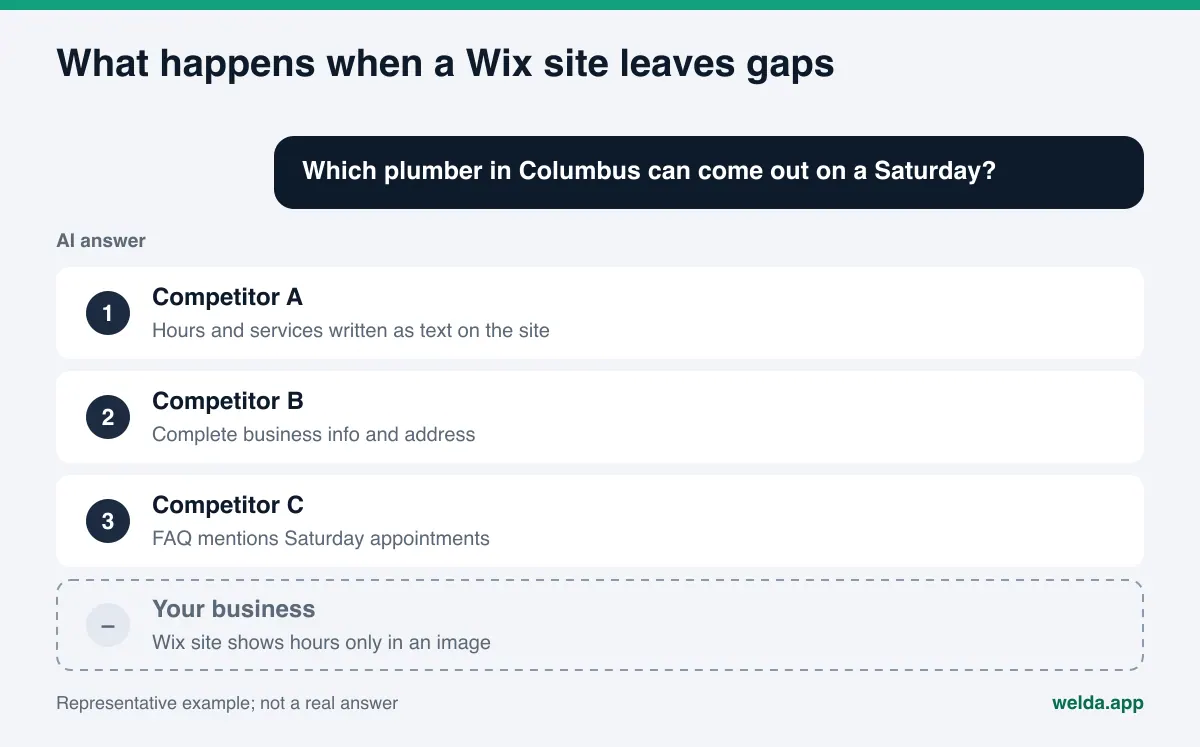
AEO (answer engine optimization) is the work of getting your business named in the answers that ChatGPT, Gemini, Perplexity and Google's AI Overviews and AI Mode give people. You may also hear it called AI search visibility, or GEO (generative engine optimization); the goal is the same, and in this guide we say AEO. The point is simple: when someone asks "which plumber in Columbus can come out on a Saturday" or "is there a dog groomer near me that handles large breeds", your name should be in the short list the assistant gives back.
Assistants build those short lists from a handful of sources: your own website, your Google Business Profile, Yelp, the BBB, Angi, Tripadvisor or Healthgrades depending on your field, and local news and guides. Of all of them, your website is the one you control completely. If it runs on Wix, then what it tells an AI is decided inside Wix's settings screens.
That is what makes Wix AEO its own topic. You do not edit files on a server. Every setting has a specific place in the Wix dashboard or editor. That is convenient, because most technical work comes down to typing text into a form field. It is also a trap, because if you never open the right panel you never notice that the field is empty. Sites built from a template often keep the template's page title, a blank description and a half-filled business profile for years.
There is also a practical point about Welda. For WordPress sites, Welda can connect through a separate Editor user and open content as drafts. There is no such connection for Wix. On a Wix site, Welda's job is to show you exactly what is missing and to prepare everything you need to fix it. You are the one who pastes it in and clicks publish. This guide walks through that split step by step.
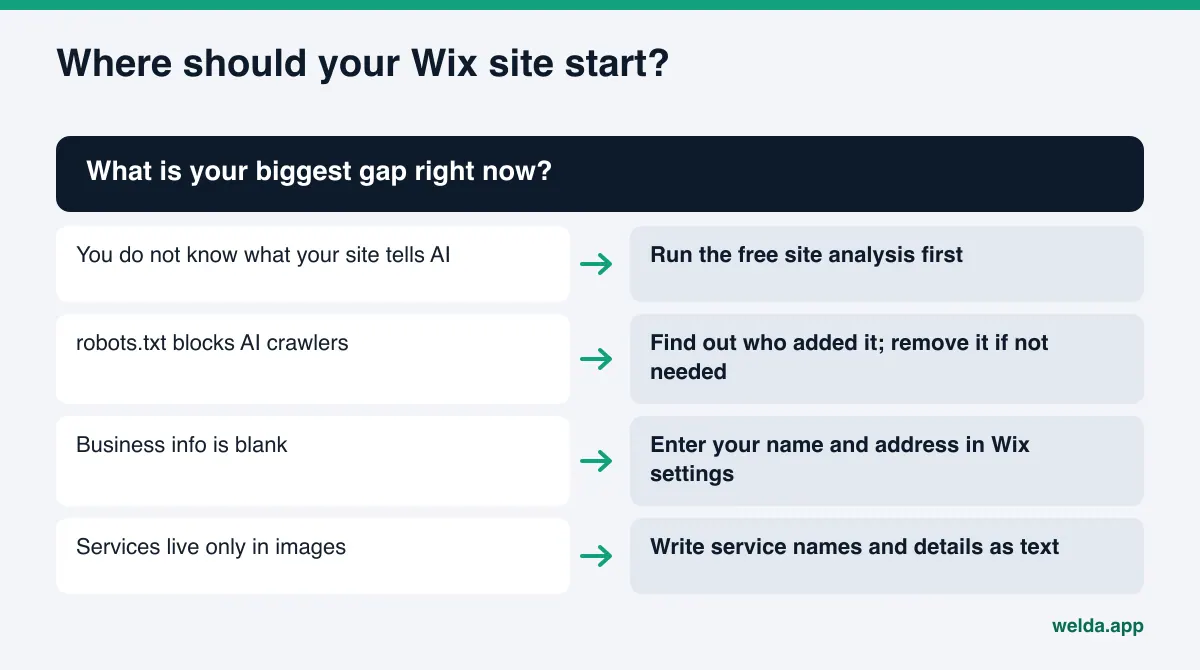
If you are not sure where to start, measure first. Welda's free site analysis reads your Wix homepage and a few inner pages the way Google and AI assistants do, and lists every gap it finds. It works in English, and reading this guide alongside that list saves time.
What does an AI assistant read on a Wix site?
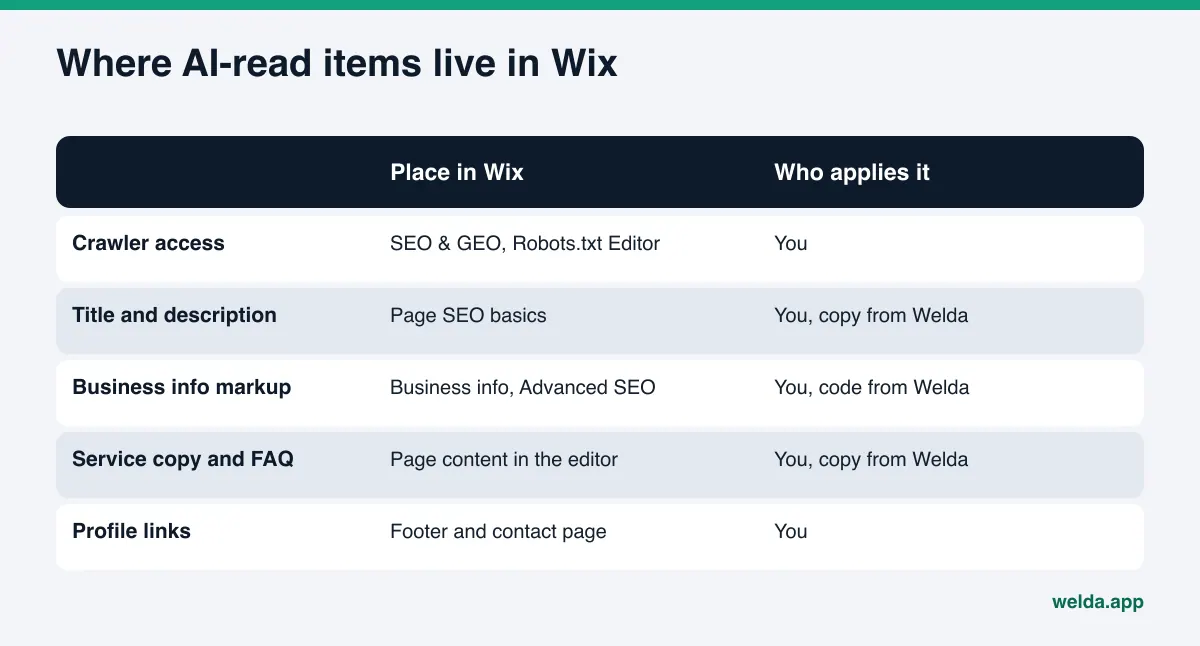
An AI assistant does not browse your site like a person. It reads the page text, the headings, the page title and meta description, any structured data (schema) on the page and the links between pages. Whether a bot can get in at all is set by your robots.txt file. The table below maps what Welda's free analysis checks to where each item lives in Wix.
| What gets checked | Where you manage it in Wix | A common situation |
|---|---|---|
| AI crawler access (robots.txt) | Dashboard, SEO & GEO, Robots.txt Editor | The default file is open; manually added block rules cause trouble |
| Page title and meta description | Each page's SEO basics | A leftover title such as "Home | My Site" |
| Main heading | The top text box on the page in the editor | Text that looks like a heading but is not marked as one |
| Business info (schema) | Settings, Business info; Advanced SEO on the page | Address or business name left blank |
| Address, phone, location | Page text, footer, contact page | Details only inside a map widget or an image |
| Linked social and map profiles | Footer or contact page links | No link to the Google Business Profile |
| FAQ section | A text section on the page | Missing, or one-line answers hidden in accordions |
| Clearly described services | Service page copy | Service names written on top of photos |
The third column is not a measurement. It describes typical situations you may run into on template-built Wix sites. Which of them apply to you can only be seen by looking at your own site.
Wix AEO step by step
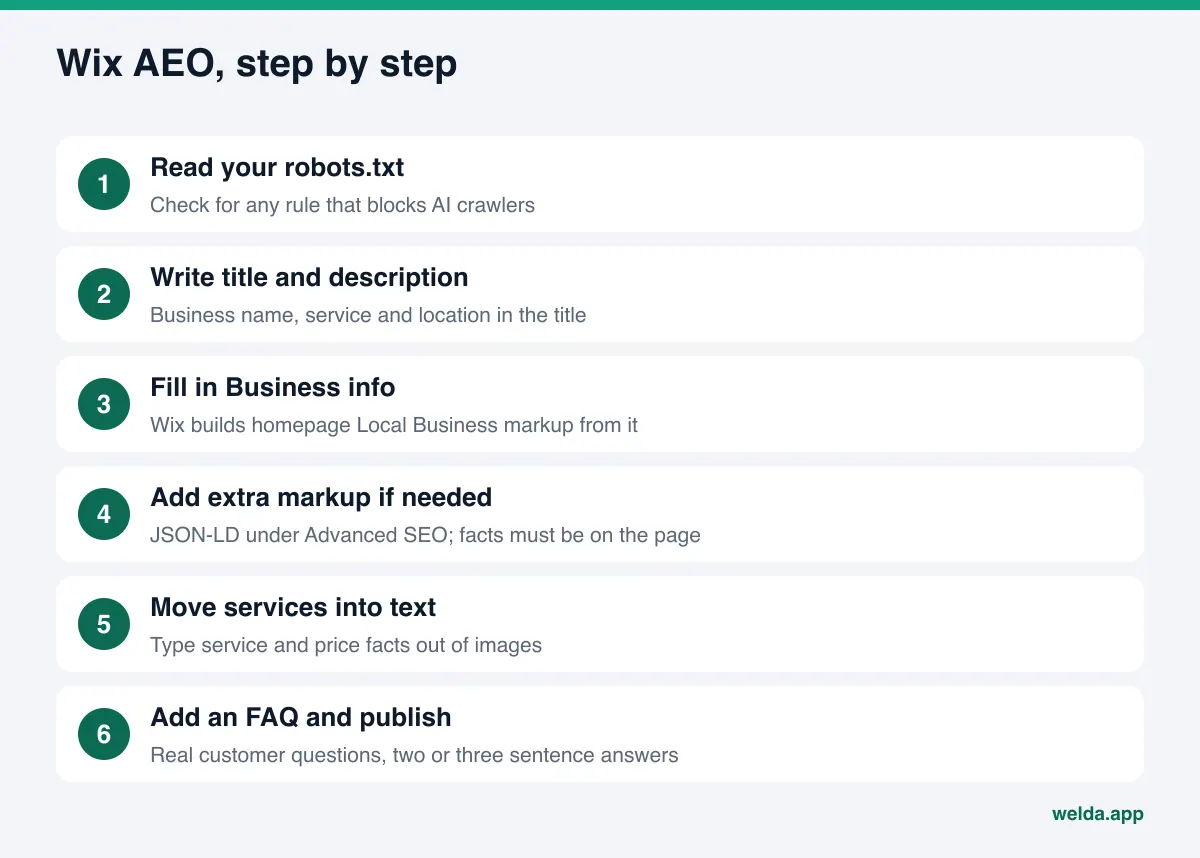
The order below is meant to close the most gaps with the least effort. The first three steps take most businesses an afternoon. Menu names come from Wix's own help center; Wix updates its interface from time to time, so if a label looks slightly different, look for the item with the same meaning.
- Check your robots.txt file. According to Wix's guide to editing your site's robots.txt file, you open SEO & GEO in the dashboard, scroll to Tools and settings and click Robots.txt Editor. By default, bots can reach all of your pages. If someone once added a "Disallow" rule for GPTBot or a similar crawler, that assistant cannot read your site. If you are unsure, do not edit the file; just read it and note what it says. Wix calls this an advanced feature, warns that changes can affect how you appear in search, and offers a Reset to Default button.
- Write the homepage title and meta description. Every page has SEO basics with a title tag and a meta description. Put your business name, what you do and where you do it in the title. Use the description to answer the first two questions a customer would ask. For more on this, see our guide to title tags and meta descriptions for AI search.
- Fill in Business info. Wix's article on local business markup for your homepage explains that Wix builds Local Business markup from the name and address you enter under Settings, Business info. It also notes that the markup covers your primary location only. If you have more than one location, each needs its own page; our guide to location pages for AI search covers how.
- Add extra structured data if you need it. For details the automatic markup does not cover, such as hours, service area or social profiles, open the page's SEO basics, go to the Advanced SEO tab and choose Structured Data Markup. Wix's help page on adding structured data markup says it accepts JSON-LD only, each markup must be under 7,000 characters, and you can add up to five per page. The facts in your markup should also appear on the visible page.
- Fix the main heading and intro. The text at the top of your homepage should describe the business in one sentence: what, for whom, where. "Welcome" or a slogan on its own tells an AI nothing.
- Write services as text. Put service names and short descriptions on the page as text, not on top of images. Add what customers ask about: typical price range, how long it takes, who it is for.
- Add an FAQ section. Write out five to ten questions customers really ask by phone or email, with short, direct answers.
- Match your contact details and link your profiles. Address, phone and hours should be identical on the site, your Google Business Profile, Yelp and anywhere else you are listed. Add links to your Business Profile and social accounts in the footer.
- Strengthen your About page. Say who you are, how long you have done this work and why someone can trust you, with real facts. Our guide on about page trust signals for AI shows how to build that page for assistants.
After these steps, remember to publish in Wix. Changes in the editor do not reach the live site until you publish. Once published, open the live page and confirm the new title and text are actually there. Wix notes that search engines pick up a changed robots.txt file on their next crawl; the same is true for every other change, which bots only see when they come back.
Common Wix gaps and how to fix them
The Wix visual editor makes design easy. It also makes it easy to put content where an AI cannot read it well. The table below collects frequent situations in Wix AEO work and the fix for each.
| Symptom | Why it is a problem | Fix in Wix |
|---|---|---|
| Menu or price list only as an image | An AI may not read text inside an image reliably | Type the main items into a text box; keep the image as an extra |
| Template page title still in place | The title does not say what the business does | Rewrite the title tag in the page's SEO basics |
| Address only inside a map widget | The map's content is not page text | Add the address as text in the footer and contact page |
| Business info is blank | Wix cannot build homepage Local Business markup | Fill in Settings, Business info |
| FAQ answers are one line in an accordion | Too short to be quoted | Write two or three sentences per answer |
| Several locations on one page | Automatic markup covers the primary location only | A separate page and markup per location |
One more topic is how the page loads. On some sites, part of the text arrives through JavaScript after the page opens, and not every crawler handles that the same way. We cover the general issue in JavaScript rendering and AI crawlers. Welda's analysis shows the text it could read, which gives you a clue: if an important fact comes back as "not found", check how that fact sits on the page.
Example: a Wix homepage before and after
This example is not a real business. It describes a template-built Wix site for an example plumbing company in Columbus, Ohio. The point is to show how small each setting is, and how much each one changes what an assistant can say.
| Field | Before (template leftovers) | After |
|---|---|---|
| Title tag | Home | My Site | Example Plumbing, Columbus OH: repairs, water heaters, drains |
| Meta description | Blank | Licensed plumbers serving Columbus and nearby suburbs. Weekday and Saturday appointments, upfront estimates. |
| Main heading | Quality you can trust | Plumbing repairs and water heater installs in Columbus, Ohio |
| Services | Six photo cards with names on the images | Each service as text: what it covers, typical visit length, who it suits |
| Business info | Business name only | Name, address, logo; Wix adds the markup to the homepage |
| FAQ | None | Six questions: service area, estimates, payment, permits, warranty terms, scheduling |
None of the changes in the "after" column touch the design. The page looks the same. What changes is what the page tells an AI. In the "before" version, an assistant can only guess what this company does from the photos. In the "after" version, it finds sentences it can quote when someone asks for a Columbus plumber with Saturday hours.
One warning: everything in the "after" column has to be true. If you are not open on Saturdays, do not write it. If you do not offer upfront estimates, leave it out. Giving an AI wrong facts is harder to undo than giving it none, because the wrong fact reaches customers and then shows up in reviews.
How Welda handles AEO for a Wix site
For a business on Wix, Welda's work has two parts: find the gap, and prepare everything needed to close it. The publishing stays with you. Here is how both parts look from the Wix side.
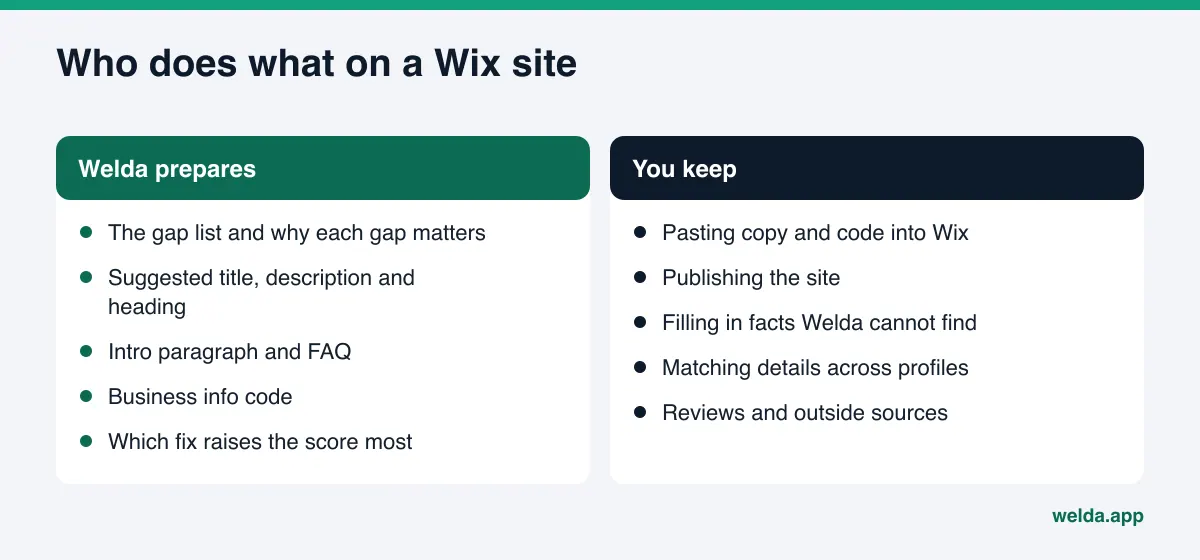
The fix package from the free analysis. The analysis reads your homepage and inner pages such as services, pricing, about and contact. For each gap it says what it saw, why it matters and how to fix it. For a Wix owner, the most useful output is the ready-to-apply fix package. It includes suggested homepage copy (title, meta description, main heading, intro paragraph), an FAQ, and the business info code.
Each part of that package has a home in Wix. The title and description go into the two fields in the page's SEO basics. The heading and intro go at the top of the homepage in the editor. The FAQ becomes a text section. The business info code goes into Structured Data Markup under Advanced SEO. Before you paste the code, check that the address, phone and hours in it are correct and also visible on the page. Welda does not invent facts it cannot find; it leaves them blank for you to fill.
The analysis also includes a simulation of how much each fix would raise your score. On Wix, where every change is manual, that is useful for deciding the order: the fix with the biggest effect and the least effort goes first. A competitor comparison shows what the businesses that come up for the same question have on their sites that yours does not. Separately, the analysis asks five customer-style questions to an AI assistant that can search the web and checks whether your name comes up. That is a one-time check, not ongoing tracking.
Manual tasks in the Welda dashboard. The full Welda dashboard is in early access and is opening first in Turkey; the free analysis is what anyone can use today. In the dashboard, any task on a system without a connection appears in the to-do list as something you do yourself, with the ready text next to it. For a Wix site that list holds items such as the page title, the description, the business info code and new content. You copy the text into Wix and mark the task done.
Above that list is a section for missing information. When Welda cannot find a fact on your site, such as how long a service takes or who the license holder is, it asks you instead of guessing. You answer once and the answer flows into every text that needs it, so what you paste into Wix is complete. In the dashboard, the questions your customers would ask are put to ChatGPT, Gemini, Perplexity and Google AI three times each; regular four-engine tracking is being added during early access, and sample screens use representative data.
What stays with you. Logging into Wix, pasting text and code, and publishing are your tasks. Welda does not access your Wix account and does not install code on your site. Your content always lives on your own site; Welda does not host content. Pricing for the dashboard is discussed in an early access call.
What order should you follow when applying the package in Wix?
You do not have to do everything on day one, but order matters because some tasks unlock others. Here is a sensible sequence.
- Day one: Read your robots.txt. If nothing blocks crawlers, leave it alone. Fill in Business info. Replace the homepage title and description with the suggested versions.
- Week one: Update the main heading and intro, add the FAQ section and publish. Paste the business info code and confirm that its facts also appear on the page.
- Week two: Review the services, about and contact pages. Move facts out of images into text. Add your Google Business Profile, Yelp and social links to the footer.
- The weeks after: Add pages or posts on the topics customers ask about. If you draft them with AI tools, apply the checks in our guide to AI-generated content and AEO.
New content usually takes weeks to show up in AI answers, so seeing no change in the first weeks is normal. What you can measure in the short term is a shorter gap list on your own site.
Limits: what Welda does not do on your Wix site
Knowing what Welda does not do sets clear expectations for Wix AEO work.
- It does not write to Wix directly. There is no Wix connection. Every change is made by you in the Wix dashboard or editor.
- It does not promise rankings or a spot in ChatGPT. AI answers draw on many sources, and nobody can promise a place in a given answer.
- It does not make up facts. If your hours, price range or team are not on your site, it asks you.
- It does not publish without approval. On Wix, publishing is in your hands anyway.
- It does not create fake reviews. It can draft replies to reviews, never the reviews themselves.
- Outside work stays with you. Handling negative reviews, directory accounts and press outreach is the business's job.
The free analysis has limits too. It does not measure rankings and does not promise them. It is free once per site; your email and phone are verified, and the results link is emailed to you and stays open for 14 days.
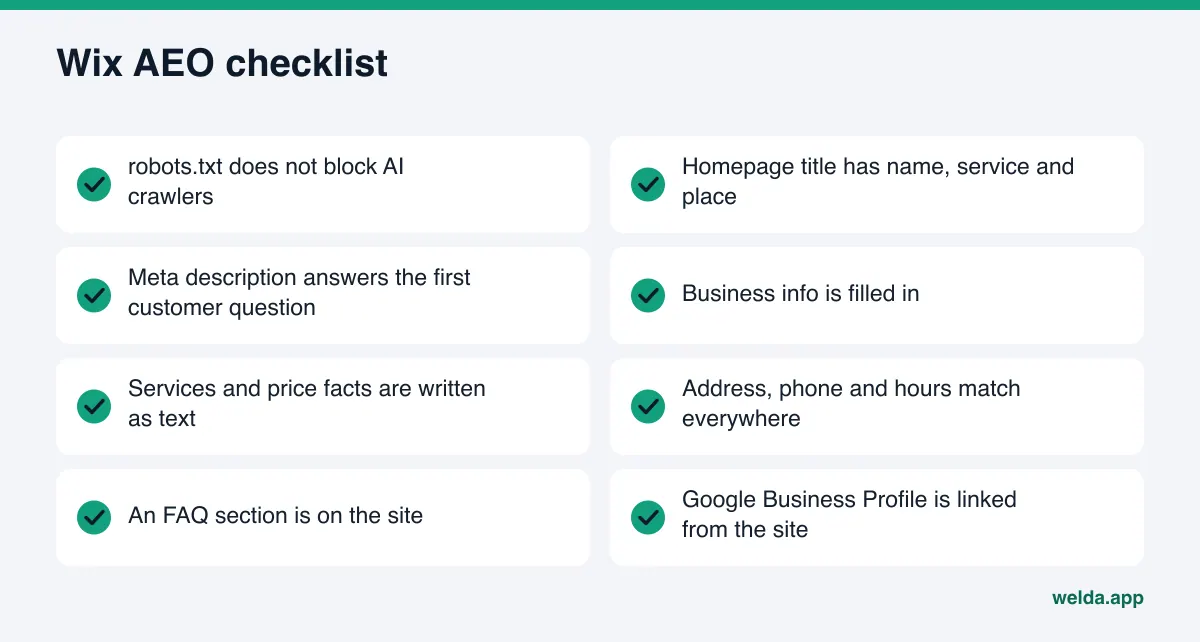
Wix AEO checklist
You can work through this list with your Wix dashboard open. Every item maps to a setting or to page copy.
| Check | If yes | If no |
|---|---|---|
| Does robots.txt block AI crawlers? | Find out who added the rule and why; remove it if it is not needed | Leave the file alone |
| Does the homepage title include name, service and place? | Move on to the description | Rewrite the title tag |
| Is Business info filled in? | Decide whether extra markup is needed | Enter name and address |
| Are services written as text? | Move on to the FAQ | Move facts out of images |
| Are address, phone and hours identical everywhere? | Add profile links | Pick one correct version and copy it everywhere |
| Is there an FAQ section? | Check answers are two or three sentences | Add one with real customer questions |
If you want a timeline to go with the checklist, our 90-day AEO plan lays out what to do from the first measurement to the end of month three.
Frequently asked questions
Can you do AEO on a Wix site?
Yes. Everything an AI reads can be edited in Wix: robots.txt, page titles and descriptions, business info, structured data and page copy. Wix AEO is about filling those in with accurate facts and writing content as real text.
Can Welda connect to my Wix site?
No. Welda's direct connection is for WordPress sites. For Wix, Welda finds the gaps and gives you a ready package; you paste the text and code into Wix yourself. In the dashboard these show up as manual tasks.
Do I need to change my Wix robots.txt?
Usually not. The default file lets crawlers in. Only if someone added rules that block AI crawlers do you need to review them. If you are unsure, read the file first and do not change it blindly.
Where do I paste business info code in Wix?
In the page's SEO basics, under the Advanced SEO tab, in Structured Data Markup. Wix accepts JSON-LD only. Make sure every fact in the code is also visible on the page.
Are Wix's built-in SEO settings enough for AI visibility?
They are a necessary start, not the whole job. AI assistants also weigh how clear and complete your page copy is, and what other sources say about you. After the settings, work on service copy, FAQs and consistent details across your profiles.
How long until changes show up in AI answers?
Your site changes the moment you publish, but reflection in AI answers usually takes weeks. It varies by engine, and no one can give an exact date.
Start with your Wix site
Wix AEO is not a redesign. It is filling in the right settings, writing facts as text and keeping them the same everywhere. The first step is seeing what your site tells an AI today. Run the free site analysis to get your Wix site's score, the gap list and a fix package you can paste straight into Wix.