Can AI crawlers read a website that is built with JavaScript? Often, not fully. Most AI crawlers read the HTML your server sends on the first request and do not run the JavaScript that fills the page in a browser. If your services, address and FAQ only appear after JavaScript runs, AI answer engines may never see them.
This guide covers JavaScript rendering and AI crawlers from a small business owner's point of view: what the gap is, how to check your own site in about five minutes, which rendering options to discuss with your developer, and which part of the job Welda takes on. It is part of AEO (answer engine optimization), the work of getting your business named in AI-generated answers. You may also see the same work called GEO, short for generative engine optimization. The fix usually touches how the site is built, so the decision lands on the owner even though the details are technical. If you want to see how your site looks to a crawler before reading on, run the free AI visibility analysis. It reads your pages the way the server delivers them and flags it when very little text comes through.
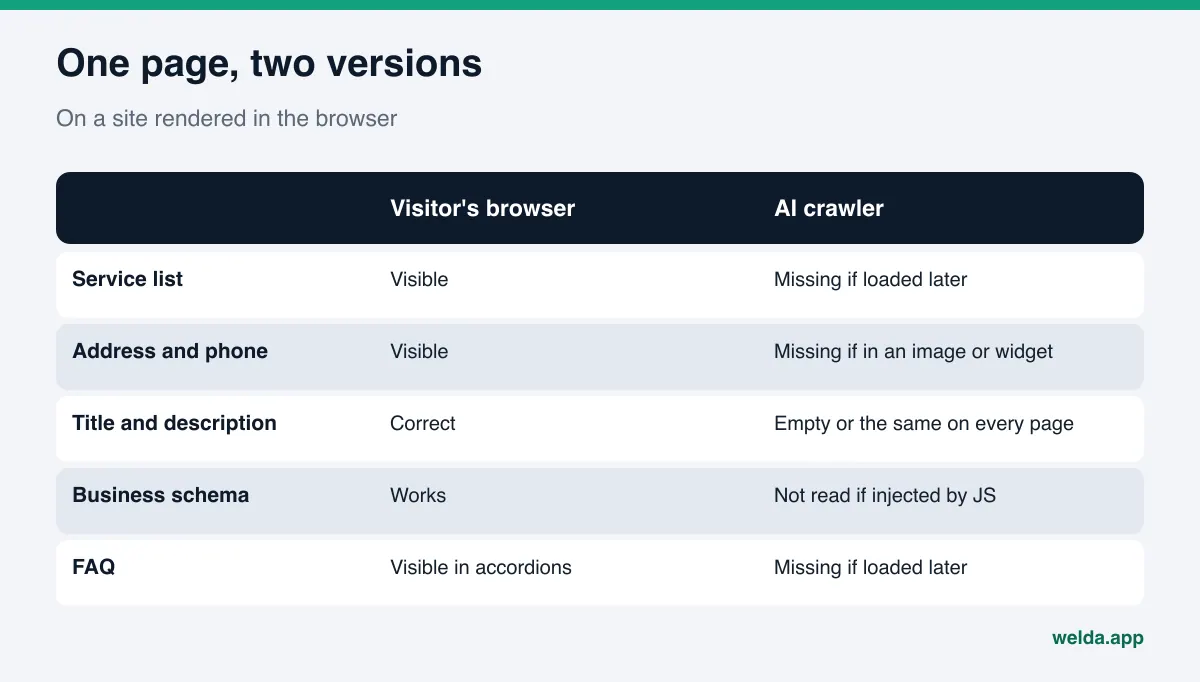
What is the gap between what browsers and AI crawlers see?
When someone opens a web page, two things happen. First, the server sends an HTML file. Then the browser runs the JavaScript referenced in that file, and the script builds part or all of the visible page. For a visitor the difference is invisible: a fraction of a second later, the service list, the pricing table and the phone number are on screen.
For a crawler, the difference is the whole story. Google handles it in stages. According to Google's JavaScript SEO basics, a page is crawled, then rendered later with a headless browser, then indexed. The same guide states plainly that not all bots can run JavaScript. For crawlers run by AI companies the picture is sharper. A crawler traffic analysis published in December 2024 found that none of the major AI crawlers it examined rendered JavaScript; Gemini, which uses Google's crawling infrastructure, was the exception.
So every page you publish exists in two versions:
- The server HTML: what the crawler reads. On some sites this is little more than an empty container and a link to a script bundle.
- The rendered page: what your visitor sees. All the text, headings and contact details live here.
The bigger the gap between the two, the less an AI system knows about you.
Why JavaScript rendering and AI crawlers matter for AEO
When ChatGPT, Perplexity or Google's AI features answer a question such as "emergency plumber open on Sunday in Dallas" or "family dentist in Scottsdale that takes new patients," they pull information from the web. OpenAI's crawler documentation describes separate user agents for separate jobs: OAI-SearchBot surfaces sites in ChatGPT's search features, GPTBot collects content that may be used for model training, and ChatGPT-User visits a page when a person's question calls for it. Whichever one arrives, what it takes from your page is the text your server returns.
If that text is thin, three things follow:
- The AI cannot tell what you do. Your service names, the customers you serve and the neighborhoods you cover never reach the crawler, so the system has nothing to match against the question.
- Other sources speak for you. When your own site gives a crawler nothing, your Google Business Profile, Yelp page, BBB listing or Angi profile becomes the main description of your business. If those are incomplete or out of date, so is the answer.
- Your content work is wasted. A carefully written FAQ that loads through JavaScript is, for these crawlers, a FAQ that does not exist.
The pattern shows up most often on sites built as single-page applications, pages rendered only in the browser with frameworks such as React, Vue or Angular, templates that pull content from an API after load, and sites that inject menus, price lists or reviews through a third-party widget. The frameworks themselves are not the problem; the same tools can produce pages that are fully rendered on the server. The problem is important text that only exists after the browser does its work.
How to check your site in five minutes
You do not need to be a developer for this. A desktop browser is enough.
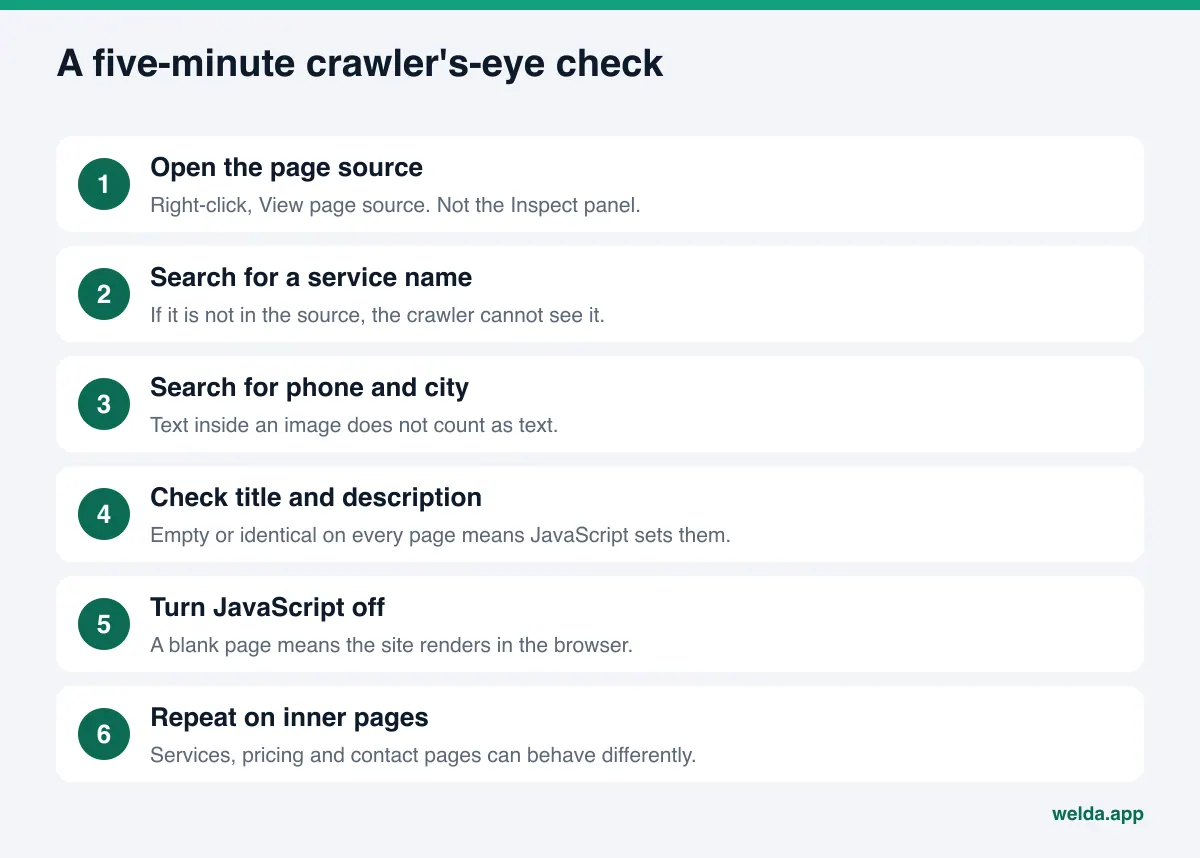
- Open the page source. Right-click your homepage and choose "View page source," or type
view-source:in front of the URL. This is the HTML the server sent. It is not the same as the Inspect panel, which shows the page after JavaScript has run. - Search for a service name. Press Ctrl+F (Cmd+F on a Mac) and search the source for your most important service. If you cannot find it, neither can a crawler that skips JavaScript.
- Search for your phone number and city. If they only appear inside an image or inside a map widget that loads later, the crawler does not read them as text.
- Check the title and description. Near the top of the source, look at the
<title>tag and themeta name="description"line. On some sites these are written by JavaScript; in the source they are empty or identical on every page. - Turn JavaScript off and reload. Disable JavaScript temporarily in your browser settings or developer tools and reload the page. A blank screen or a spinning loader is roughly what many AI crawlers get.
- Repeat on inner pages. Run the same checks on your services, pricing and contact pages. A homepage can be prerendered while inner pages are built in the browser.
You will end up in one of a few situations. The table below maps each to a next step.
| What you find in the source | What it means | Next step |
|---|---|---|
| Services, address, phone, title and description are there as text | Crawlers can read the core of the page | Move on to content quality and business details |
| Main copy is there, but reviews, FAQ or prices are missing | Some sections load later | Move those sections into the server HTML |
| Title and description are the same on every page | Page-level tags are set by JavaScript | Generate tags on the server, page by page |
| Only an empty container and script files | The site renders entirely in the browser | Discuss the rendering approach with your developer |
| The page does not load or shows a security challenge | Automated visits may be blocked | Review firewall and bot settings |
The last row has nothing to do with JavaScript, but the outcome is the same: the crawler never reaches your content. We cover how to check whether your robots.txt file shuts out AI crawlers in robots.txt for AI crawlers.
Example: a contractor site that renders in the browser
Here is an illustrative scenario. It is made up and does not describe a real business. A roofing contractor in Phoenix had a site built a few years ago as a single-page app. In a browser it looks fine: a services section listing roof repair, replacement and storm damage inspections, the service area, business hours and a FAQ at the bottom.
When the owner opens the page source, this is what turns up:
| Page element | In the browser | In the page source |
|---|---|---|
| Page title | Company name plus "Roofing in Phoenix" | Company name only, same on every page |
| Services section | Three services with short descriptions | Missing |
| Service area, hours, phone | Footer | Missing |
| FAQ | Six questions in accordions | Missing |
| LocalBusiness schema | Invisible, added by a tag manager | Missing |
An AI system answering "roofer for hail damage in Mesa" could take little more than the business name from this site. Which services the company offers, which suburbs it covers and whether it does free inspections would have to come from somewhere else, such as its Google Business Profile, Yelp or Angi listing, if those are complete.
The contractor does not need new copy here. The copy already exists. The job is to get it into the HTML the server delivers. That is why this check belongs before any content budget: if the text you already have never reaches the crawler, writing more of it changes nothing.
Which rendering approach fits your site?
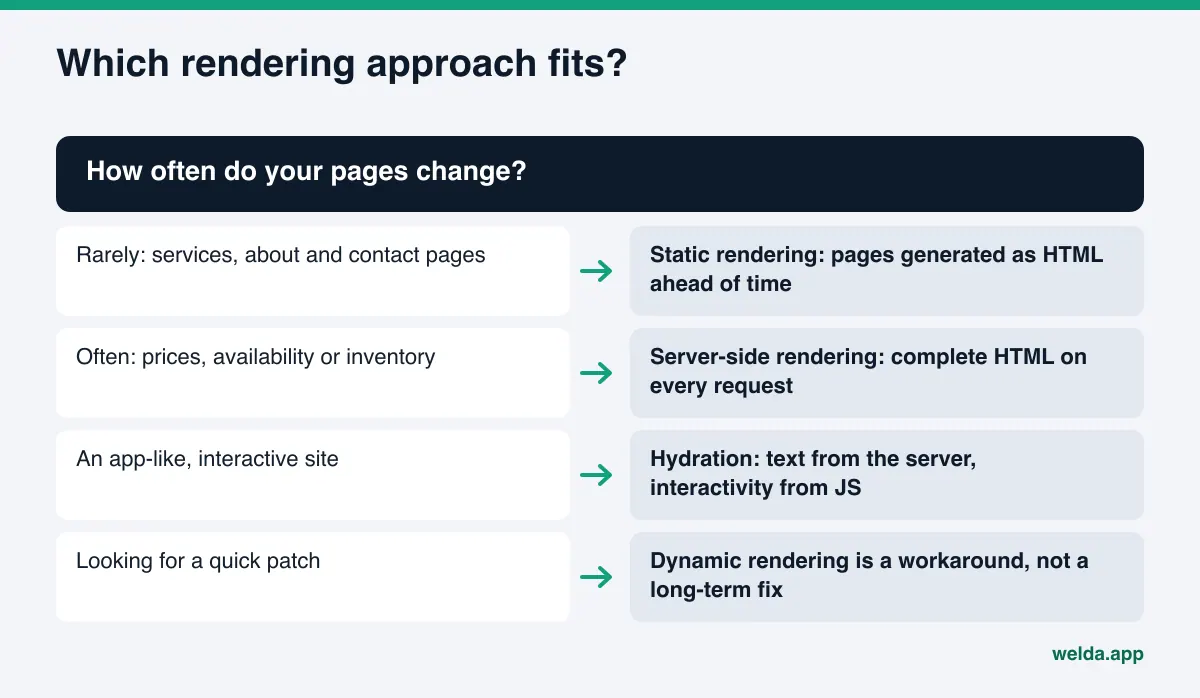
The technical name for the problem is client-side rendering. The fix is to put important text into the HTML the server sends. There are several ways to do that, and the right one depends on how your site is built.
- Server-side rendering (SSR): each page is assembled on the server for every request, so crawlers and visitors receive the same complete HTML. A good fit for content that changes often.
- Static rendering (prerendering): pages are generated as HTML files ahead of time. A simple route for pages that rarely change, such as services, about and contact.
- Hydration: the page arrives fully rendered from the server, and JavaScript then adds interactivity. The usual route for sites that want an app-like feel.
- Dynamic rendering: serving crawlers a separate prerendered version. Google describes this as a workaround rather than a long-term solution and recommends server-side rendering, static rendering or hydration instead.
Questions to bring to your developer: "Why are the service descriptions missing from the page source?", "Can these pages be rendered on the server or prerendered?", "Will the title, meta description and business schema be in the HTML on first load?", "Will any URLs change?" The last one matters. If URLs change, old addresses need redirects to the new ones.
You do not have to rebuild everything at once. For most local businesses the order is: homepage and service pages first, then contact and about, then blog and campaign pages. Interactive pieces such as a booking widget or a quote calculator can stay in JavaScript, as long as the same information also exists as plain text on the page.
What has to be in your server HTML
Whatever approach your developer picks, some information has to be present as text in the first HTML response for an AI system to describe you correctly. Use this list again after the fix.
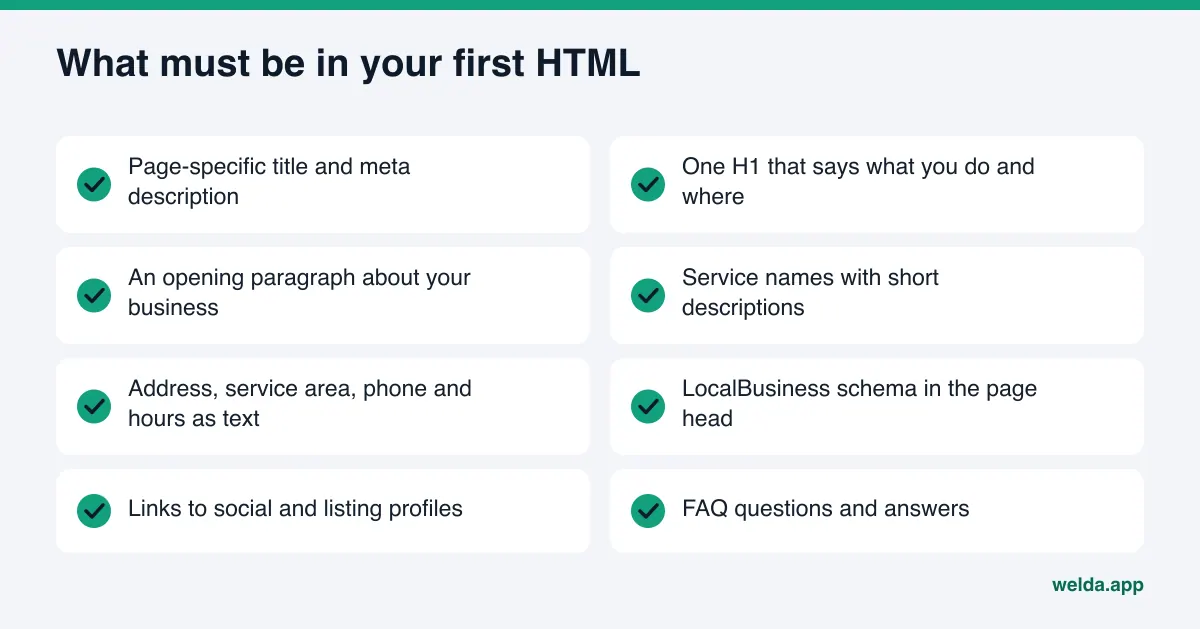
- A page-specific title and meta description
- One H1 that says what you do and where
- An opening paragraph that explains your business
- Service or product category names with short descriptions
- Address, city or service area, phone and hours as text, not inside an image
- LocalBusiness schema in JSON-LD, in the page head
- Links to your social and listing profiles
- FAQ questions and answers
Pay extra attention to schema. Some sites add their business markup through a tag manager or plugin that runs JavaScript. Google often picks it up after rendering; a crawler that does not run JavaScript does not. Markup that appears in the page source is the dependable option. For connecting your profiles inside that markup, see linking social profiles with sameAs, and for building the question-and-answer section, see FAQ pages for AEO.
How Welda handles JavaScript rendering issues
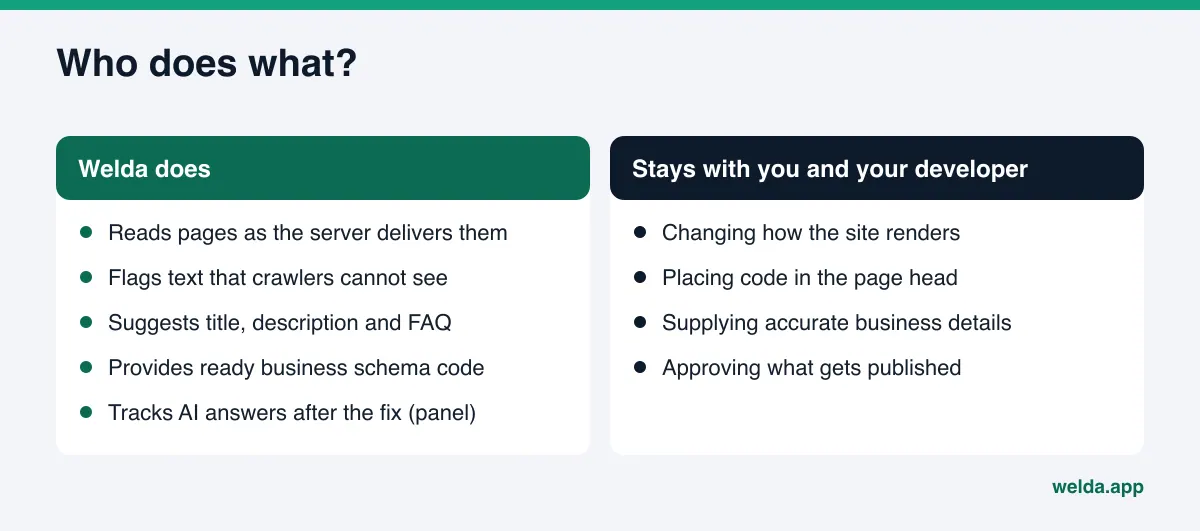
Welda is AI visibility software: it measures where a business appears in AI answers and fills in what is missing. On this topic its job has three parts: make the problem visible, prepare the text and code that belong in your server HTML, and track what changes in AI answers afterward. Changing how your site renders is your developer's job.
The free analysis reads your pages like a crawler
The free analysis reads your homepage and a few inner pages (services, pricing, about, contact) as the server delivers them. It does not run JavaScript, so the report gives you something close to a crawler's view. Under the access group there is a separate item, "Page text is visible to bots," which is marked as missing or as a problem when the server HTML carries little readable text. The title, meta description, H1 and business schema are read from that same HTML, so if they are written only by JavaScript, they show up as missing in the report.
That makes the report a useful diagnostic signal. If everything looks right in the browser but the report says your title and service text are missing, the cause is most likely rendering, not content. For each gap the report lists what was found, why it matters and how to fix it, and you can forward that page to your developer as is. The analysis runs in English and German as well as Turkish. Our guide on how to read your AI visibility report walks through each section.
Ready-made text and code for the server HTML
Fixing the rendering does not decide what the first HTML should say. The analysis suggests a homepage title, meta description, H1, opening paragraph and FAQ. It also provides a ready-to-install fix pack that includes your business schema code. Your developer can place that code directly in the page head instead of injecting it with a tag manager. A simulation shows how much each fix is expected to move your score, which helps you decide which page to tackle first.
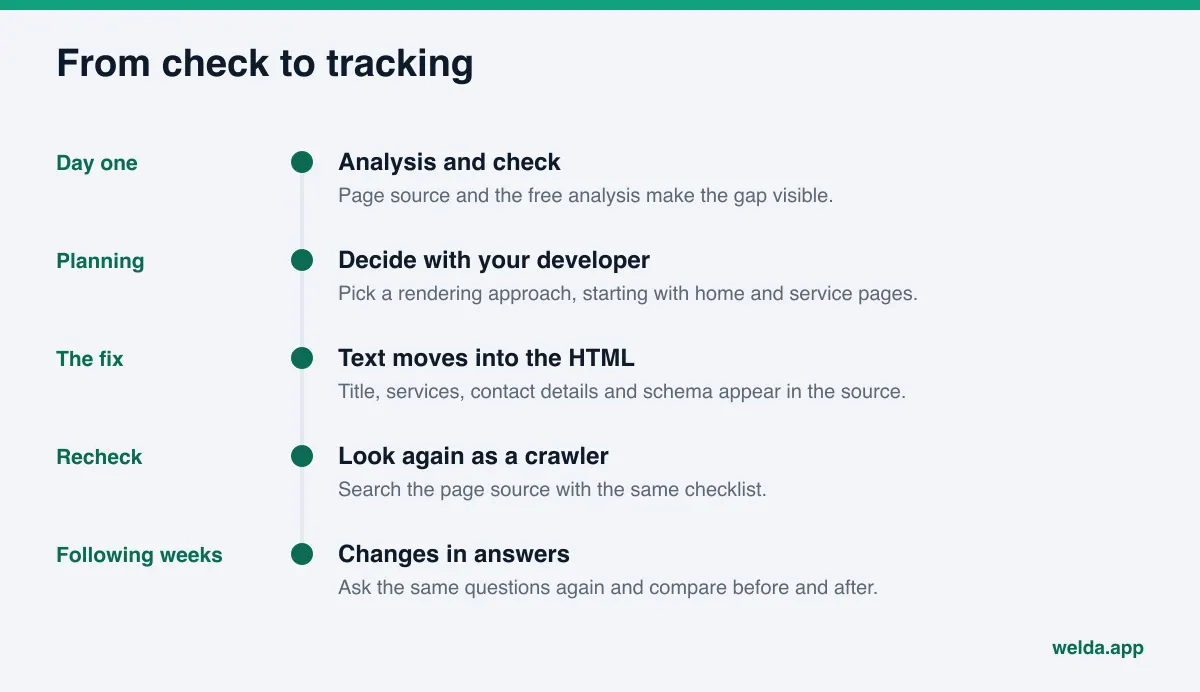
The panel: tasks split by who does them, then tracking
In the Welda panel, tasks sit in a single list, separated by who has to act. Details Welda could not read from your site are asked of you; Welda does not guess them. Work that has no connected system to publish through is listed as a manual task with the text ready beside it, and technical problems that make a page hard to read go on the same list. Switching rendering approach is developer work, so Welda does not do it for you, but the problem and the text that belongs on the page are waiting in the list. On WordPress sites Welda connects through a separate Editor user and an application password, with no code installed; content opens as a draft and goes live when you approve it. Your content always stays on your own site.
To see whether a fix worked, the panel asks your customers' likely questions in ChatGPT, Gemini, Perplexity and Google AI three times each and shows where your name appears and in what position. A before-and-after view puts the weeks before and after the change side by side. New content usually takes weeks to show up in AI answers, so a result from the first week is not a verdict.
A clear note on status: the panel is in early access and is opening first in Turkey. Regular four-engine tracking is being added during early access, and sample panel screens use representative data. What anyone can use today is the free analysis, which works in English and German. Pricing is discussed in an early access conversation.
Limits: what Welda does not do
Knowing where Welda stops makes the conversation with your developer easier.
- It does not change your site's code. Moving to server-side rendering, swapping a theme or restructuring pages is developer work. Welda shows the problem and prepares the text.
- It is not a full rendering audit. The free analysis looks at a handful of pages and reads the server HTML. It does not crawl every URL you have.
- It does not guarantee rankings or placement in ChatGPT. Even a perfectly readable page is no promise; the AI system decides which businesses to name.
- It does not invent facts. If your hours, service area or pricing cannot be read from your site, Welda asks you.
- It does not publish without approval. Prepared content comes to you; the publish decision is yours.
- It does not measure search rankings. The free analysis does not track your Google position, and its AI test is a one-time check.
One more caution: fixing rendering may not be enough on its own. Once crawlers can read your pages, you still need clear copy about what you do, and complete listings on the sites AI systems lean on. Rendering opens the door; content and sources decide what walks through it. If you are seeing a decline and want to separate technical causes from the rest, see why your AI visibility dropped.
Checklist before you talk to your developer
Fill this in once and you will know exactly what to ask for.
- Do your three most important service names appear in the page source?
- Are your phone number, address and city in the source as text?
- Does every page have its own non-empty title and meta description in the source?
- Is your business schema visible in the source, or is it added by a plugin or tag manager?
- Are your FAQ questions and answers present as text in the source?
- Does the page load blank with JavaScript turned off?
- Does robots.txt block AI crawlers, or does a firewall block automated visits?
- Will URLs change after the fix, and if so, are redirects planned?
If the answer to either of the first two questions is no, fix rendering before starting any content work. Otherwise every new piece of copy lands in the same blind spot. If you only answer no to questions 3, 4 or 5, a full rebuild is usually unnecessary; moving those pieces into the server HTML is enough.
One thing to watch while you work through the list: checking only the homepage can mislead you. On many sites the homepage is prerendered while service or pricing pages are built in the browser, and customers' questions often depend on exactly that inner-page information.
Frequently asked questions
If Google can read my site, can AI crawlers read it too?
Not necessarily. Google renders JavaScript in a separate step, and Gemini draws on that infrastructure. Many other AI crawlers only read the HTML your server sends. Doing well in Google does not mean ChatGPT or Perplexity can read your pages.
My site is built with React. Do I need a rebuild?
Usually not. React and similar frameworks can render on the server or prerender pages. Start by asking your developer to deliver key pages with complete HTML on first load. A rebuild is only needed if the current setup cannot do that.
Why does the page source look different from the Inspect panel?
Page source is the first HTML the server sent. The Inspect panel shows the page after JavaScript has run. To see what a crawler sees, use page source.
Will an llms.txt file solve this?
No. An llms.txt file is a summary file. It does not replace pages whose content can actually be read.
How soon will I see a difference after fixing it?
There is no fixed timeline. Crawlers have to revisit your pages and new information has to work its way into answers, which usually takes weeks. Track it by asking the same questions at regular intervals.
Does the free analysis diagnose JavaScript problems definitively?
It reads your pages as the server delivers them and flags thin visible text. That is a strong signal, but it is not a full technical audit. A definitive diagnosis and the fix need your developer to look at how the site is built.
Next step: see your site the way a crawler does
Problems with JavaScript rendering and AI crawlers tend to stay hidden, because everything looks fine in the browser. The first step is to see what your server actually delivers. Start the free AI visibility analysis: the report shows whether your page text is visible to bots, whether your title, description and business schema can be read, and what to do about each gap. The results link arrives by email and stays open for 14 days, so you can share it with your developer and get started.