Should your robots.txt block AI crawlers, and which ones should you allow? robots.txt for AI crawlers works the same way it does for Google: it is a plain text file at the root of your site that tells bots which paths they may crawl. The catch is that AI bots are not all alike. Some collect content to train models, while others fetch pages so ChatGPT or Perplexity can cite you in an answer. If you want to be recommended in AI search, keep the search crawlers open and make a separate, deliberate call on training crawlers.
This guide is written for owners and marketers of US small and mid-sized businesses who care about answer engine optimization (AEO), the practice of getting your business named and cited in AI-generated answers. You will see what each major bot does, what a given robots.txt line actually blocks, how to audit your file in fifteen minutes, which blocks live outside the file, and how Welda flags access problems and hands you the fix.
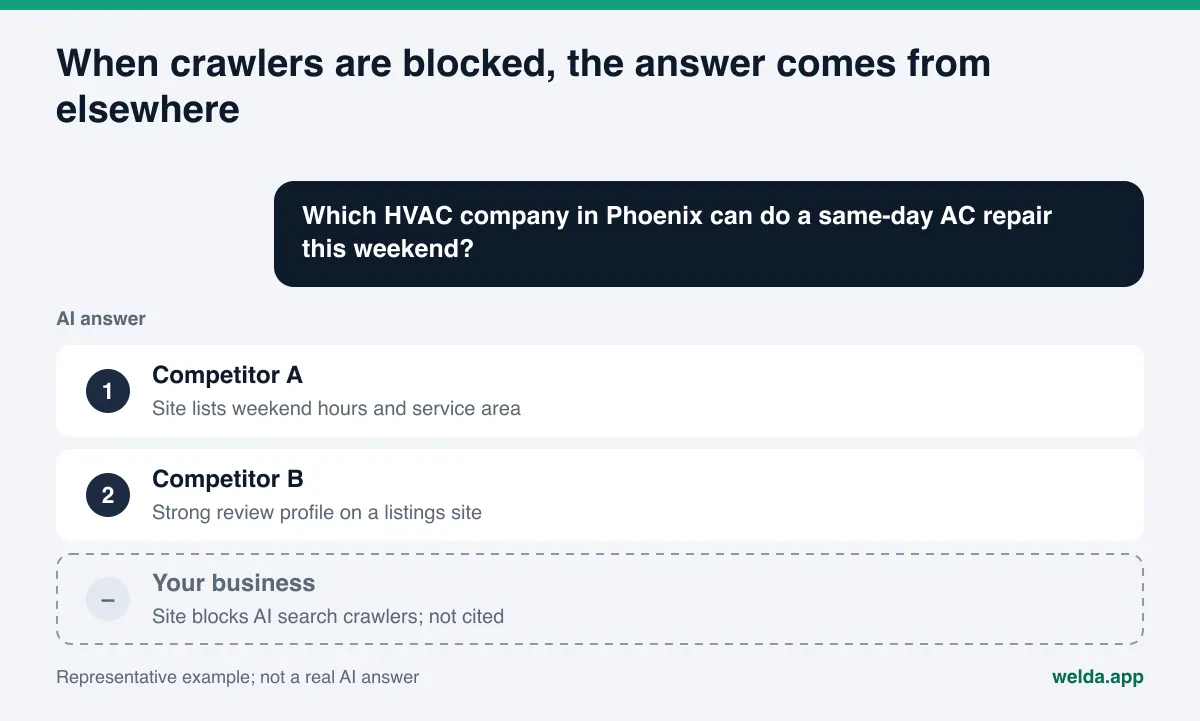
Why robots.txt for AI crawlers matters for AEO
When a homeowner asks ChatGPT or Perplexity "who can fix my AC this weekend in Phoenix," the assistant often runs a web search, reads a handful of pages, and builds its answer from them. It cannot cite a page it was not allowed to read. If your robots.txt tells an AI search crawler to stay out, the assistant only knows you through what other sites say: your Google Business Profile, Yelp, the BBB, Angi, or a Reddit thread. Your own pricing notes, service area, and FAQ never make it into the answer.
Most businesses that block AI search crawlers did not mean to. The block usually comes from one of these:
- A
Disallow: /line added while the site was in development and never removed at launch. - A CMS setting such as "discourage search engines from indexing this site" left checked.
- A security plugin or a theme that switches on "block AI bots" by default.
- A long block list copied from a blog post during the "keep my content out of AI training" debate, which shut out search crawlers along with training crawlers.
- Bot protection at the CDN or host level that rejects AI user agents regardless of what robots.txt says.
The effect is always the same: the site looks fine to human visitors, but the crawler that feeds AI answers is stuck at the door. That is why crawler access is one of the first things checked in any serious AEO audit. Great content does little if nothing can read it. If you want to know where your site stands right now, the free site analysis runs this check as one of its first steps.
Which AI crawlers exist and what does each one do?
Bot names should come from the companies' own documentation, not from guesswork; names and roles change over time. The table below summarizes what the official documentation said as of November 2026. You can check OpenAI's crawler documentation, Perplexity's bot guide, and Google's list of common crawlers for the current wording.
| User-agent | Company | Why it visits | How robots.txt applies |
|---|---|---|---|
OAI-SearchBot | OpenAI | Surfaces websites in ChatGPT's search features | Respects it. Block it and you lose citations in ChatGPT search answers. |
GPTBot | OpenAI | Crawls content that may be used to train foundation models | Respects it. Blocking signals your content should not be used for training; it does not control search inclusion. |
ChatGPT-User | OpenAI | Opens a page when a user asks ChatGPT something | User-initiated, so robots.txt rules may not apply. |
PerplexityBot | Perplexity | Surfaces and links websites in Perplexity results | Docs recommend allowing it and say it is not used to train foundation models. |
Perplexity-User | Perplexity | Fetches a page to answer a user's question | Per the docs, it generally ignores robots.txt. |
Google-Extended | A control token, not a separate crawler: governs use in Gemini training and some Gemini products | Google says it does not affect inclusion or ranking in Google Search. |
The key lesson: one company can run several bots, and each is controlled separately. OpenAI's documentation explicitly says a site can allow OAI-SearchBot for search while disallowing GPTBot for training. "Keep my content out of training" does not have to mean "keep me out of ChatGPT search." OpenAI also notes that robots.txt changes can take roughly 24 hours to be reflected in search results.
Google works differently. According to Google's AI features documentation, there are no additional requirements to appear in AI Overviews or AI Mode: a page needs to be indexed and eligible to show in Google Search with a snippet. In practice that means plain Googlebot access. You do not open a special AI door for Google; you make sure the regular one is not shut.
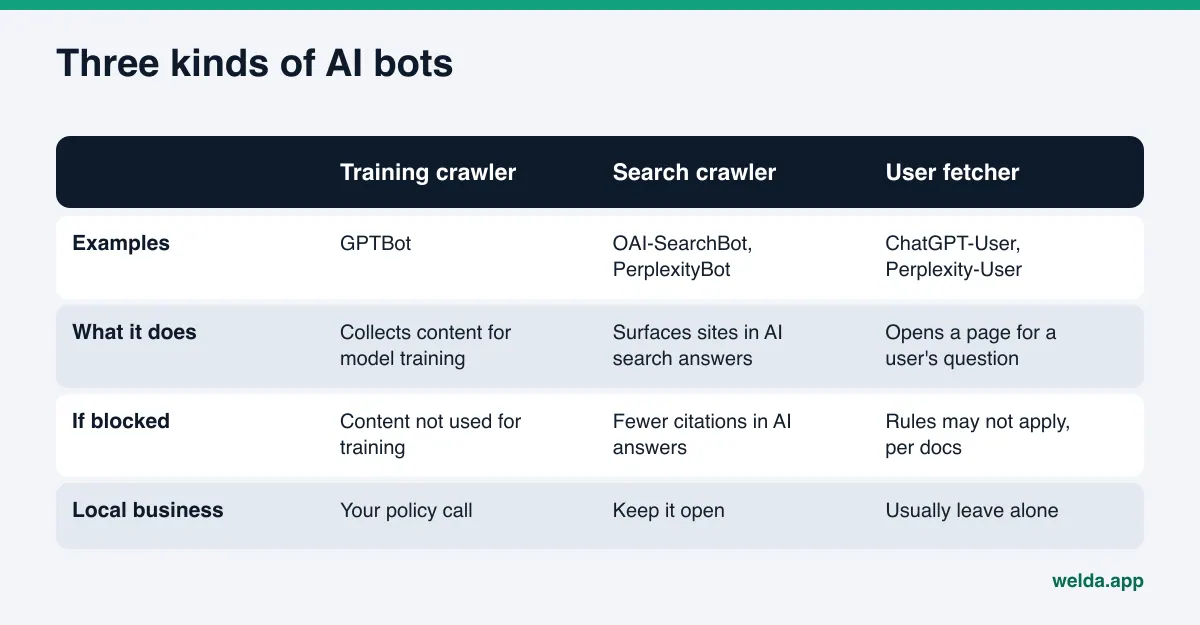
Training crawlers vs. search crawlers: what each block costs you
The most common mistake is treating every AI bot as one category. There are three, and blocking each one has a different consequence.
Training crawlers such as GPTBot gather content that may be used to train future model versions. Blocking them is a policy decision. Some publishers do not want original work in training data, and that is a legitimate stance. For a local plumber or a dental practice, though, keeping public facts like hours and service lists out of training rarely buys much. It is your call; just make it on purpose.
Search crawlers such as OAI-SearchBot and PerplexityBot read your site so the assistant can cite it in live answers. Blocking them is a direct AEO loss. The assistant still answers the question, just from other sources. Even if your name appears, the link may point to a directory listing instead of your site.
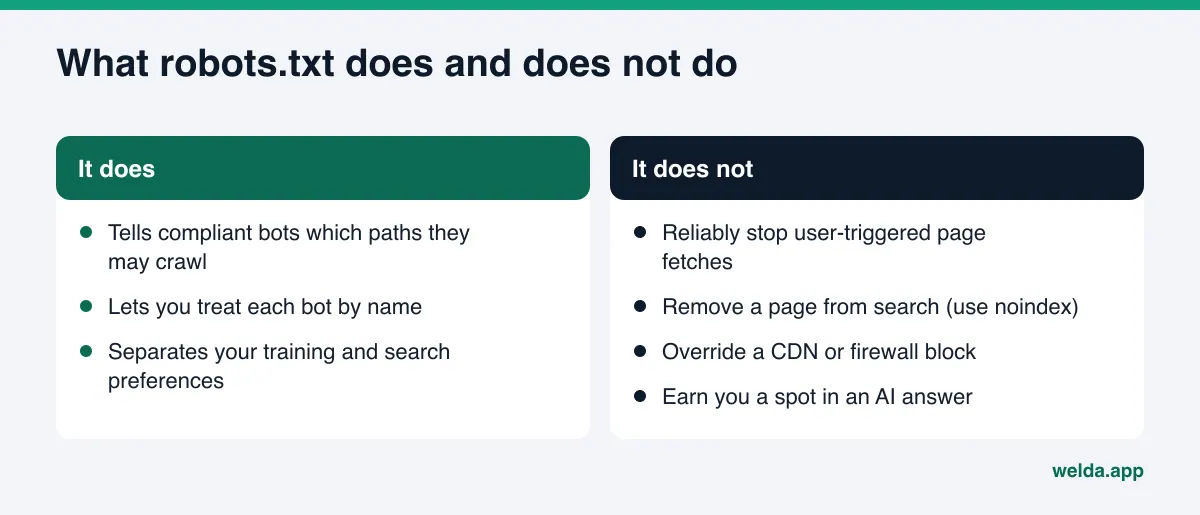
User-triggered fetchers such as ChatGPT-User and Perplexity-User visit when a person asks the assistant to open a specific page. Both companies say robots.txt may not apply to these requests because a user started them. Trying to manage them through robots.txt usually does not work, and most businesses have no reason to block them anyway.
In short: if you want to appear in AI answers, keep search crawlers open, write a separate, deliberate rule for training crawlers, and leave user fetchers alone. A note on Gemini: per Google, the Google-Extended token controls whether content is used to train Gemini models and in some Gemini products, and it does not affect Google Search. If you are thinking about blocking it, weigh the Gemini side too.
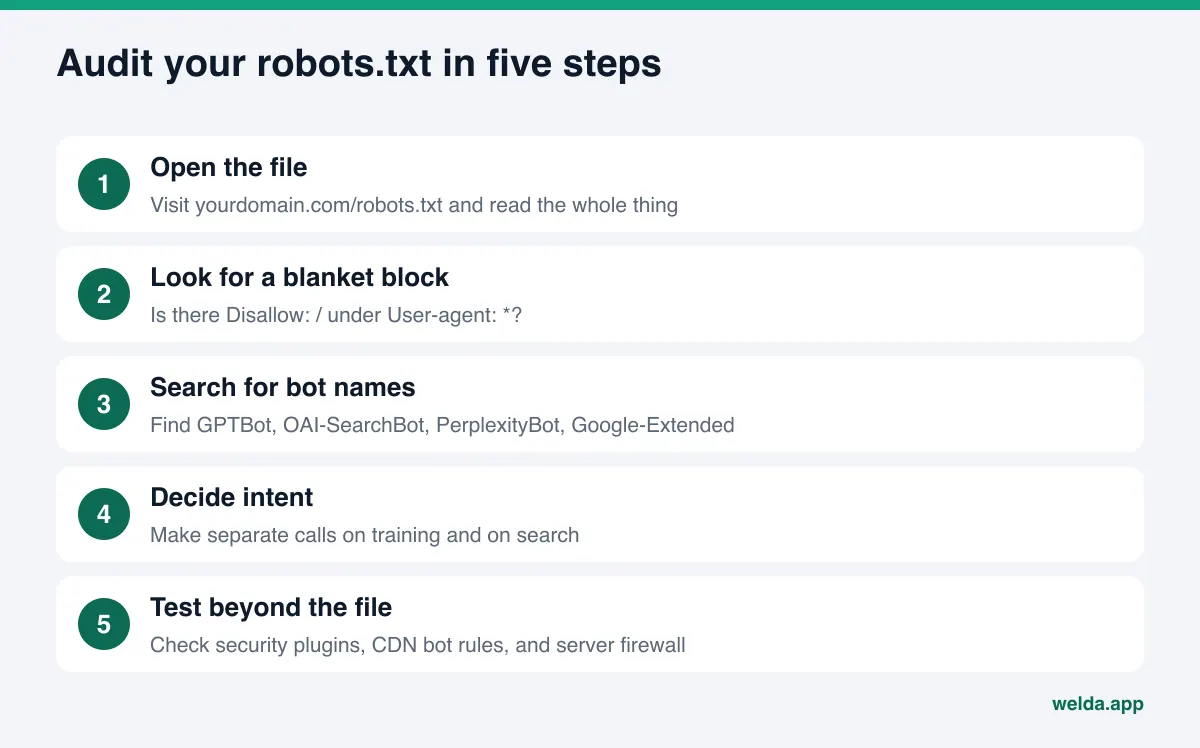
How to audit robots.txt for AI crawlers step by step
You do not need a developer for this. A browser and fifteen minutes will do.
- Open the file. Type
yourdomain.com/robots.txtinto your browser. If nothing loads, there is no file, and bots generally treat the site as crawlable. If it loads, read every line, not just the top. - Look for a blanket block. Is there
Disallow: /underUser-agent: *? If so, every bot that is not explicitly allowed is shut out of the whole site. This line is usually a leftover from development. - Search for bot names. Does the file mention
GPTBot,OAI-SearchBot,ChatGPT-User,PerplexityBot, orGoogle-Extended? Note what sits under each one. - Check the paths. Are specific folders blocked rather than the whole site? Your services, pricing, or contact pages may live under a path that was blocked by accident.
- Write down your intent. Answer two questions separately: may your content be used for training, and do you want to appear in AI search? Edit the file to match both answers.
- Check blocks outside the file. Security plugins, CDN bot protection, and server rules. More on these below.
- Save and reload. After updating, open the file again in a private window. If you still see the old version, a cache may need clearing.
By the end you should have a short note of which bot can reach which pages and a clear yes or no on whether that matches what you want. For the bigger picture, our AEO audit guide shows where crawler access sits among the other checks.
Three sample robots.txt files
These examples cover the three most common intents. Before you adapt one, keep any existing rules your site needs, such as blocks on admin, cart, or internal search pages. They are examples; the right file always depends on how your site is built.
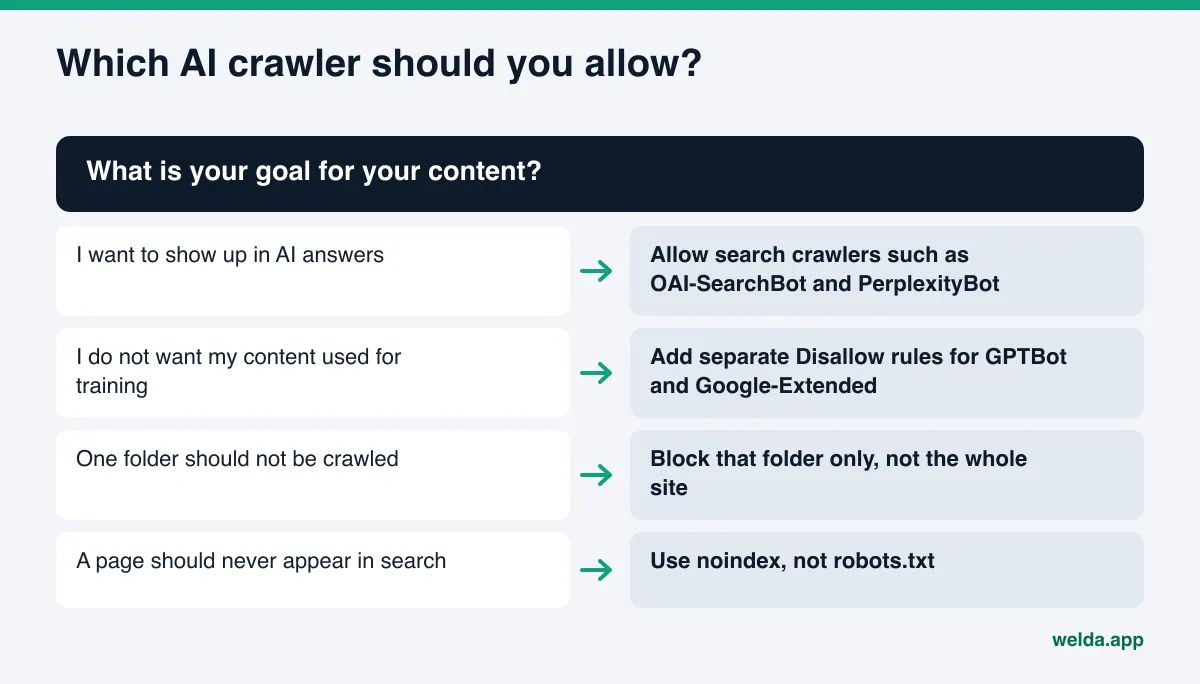
Example 1: Show up in AI search and do not object to training. The simplest version. You do not need any AI-specific lines:
User-agent: *
Disallow: /wp-admin/

Sitemap: https://yourdomain.com/sitemap.xml
Example 2: Show up in AI search but opt out of training. Blocks training crawlers by name and leaves search crawlers open:
User-agent: GPTBot
Disallow: /

User-agent: Google-Extended
Disallow: /

User-agent: OAI-SearchBot
Allow: /

User-agent: PerplexityBot
Allow: /

User-agent: *
Disallow: /wp-admin/
Example 3: Keep one section private from crawlers. If you have a members-only area, block that folder rather than the whole site:
User-agent: *
Disallow: /members/
Common mistakes to avoid: misspelling a user-agent (for example "GPT-Bot"), leaving two conflicting blocks for the same bot, placing the file in a subfolder instead of the root, and using robots.txt to hide a page from search. That last one matters. If a page should never appear in search, add noindex to the page. robots.txt only controls crawling.
Blocks outside robots.txt that still stop AI crawlers
Your robots.txt can be clean and AI search crawlers can still be turned away. Google's own guidance says crawling should be allowed not only in robots.txt but also by any CDN or hosting infrastructure. Here is where to look:
- CDN bot protection. Some CDN providers offer a one-click setting that blocks AI bots. It works independently of robots.txt, so the file can say "come in" while the request never reaches your server.
- Security plugins. On WordPress, security and performance plugins may reject unfamiliar bots. Review their bot settings. Our WordPress AEO guide covers the WordPress side in more depth.
- Server and firewall rules. Your host's firewall or
.htaccessrules can block specific user agents. - Slow pages and timeouts. The bot tries, but the page never responds in time. We cover this in site speed and AI crawlers.
- Page-level tags.
noindexandnosnippetlimit how Google can show a page in Search and its AI features. - Content that only loads through JavaScript. Even if the bot gets in, it may find little text if the page builds itself in the browser.
So "my robots.txt is fine" is not the finish line. The real question is whether a search crawler can open your page and read its text.
How to verify the fix actually worked
Editing the file is half the job. The other half is confirming that crawlers really get in. Three checks cover it.
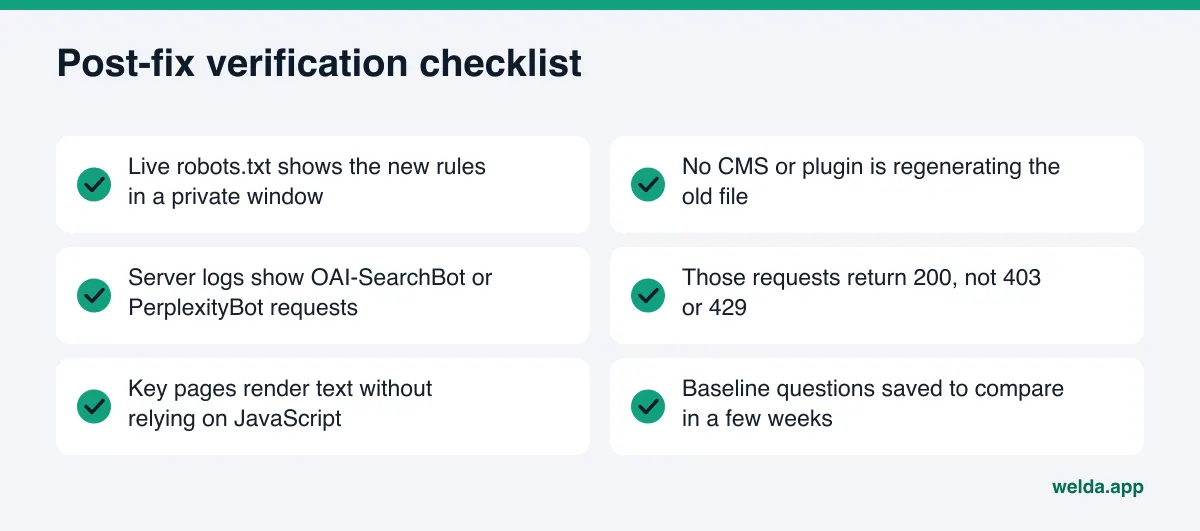
Check the live file. The file you edited and the file the browser serves may differ. Some CMS platforms generate robots.txt on the fly, and one plugin can overwrite a change made in another. Do not call it done until you see the new lines in a private window.
Check your server logs. If your host gives you access logs, search the user-agent field for OAI-SearchBot or PerplexityBot. The status code matters: 200 means the page was served, while 403 or 429 means a security layer turned the bot away. If you cannot reach the logs, ask your host or web developer to run the check.
Compare before and after. Before the fix, write down a few questions your customers actually ask and record whether AI assistants name you. A few weeks after the fix, ask the same questions again. Do not rely on a single try, since AI answers can vary on the same question. Asking each question several times and comparing side by side gives you a more reliable picture.
Consider an example scenario: a landscaping company relaunches its site, and the agency forgets to remove the development-era Disallow: /. The new service pages, service area map, and FAQ are all live, yet none of them show up as a source in AI answers. Once the line is removed, the next step is running the three checks above in order, then moving on to content.
How Welda handles AI crawler access
Welda is software that measures where a business shows up in AI answers and completes the missing pieces on the business's behalf. Crawler access comes up in two places in that work: the first diagnosis and ongoing source tracking.
Diagnosis in the free site analysis. The free site analysis reads your homepage and a few inner pages such as services, pricing, about, and contact. One of its first checks is whether AI bots can get into your site through robots.txt. For each issue the report says what it found, why it matters, and how to fix it. A simulation shows how much each fix would move your score, so you can see where the access fix lands next to the other work and set priorities. The analysis also asks five likely customer questions to an AI assistant that can search the web and checks whether your business name appears in the answers. That is a one-time snapshot: useful as a baseline, not a substitute for ongoing tracking after you change robots.txt. The free analysis works in English.
Source tracking in the dashboard. The Welda dashboard has a sources view that lists the sites AI engines lean on when they answer, and your standing on each. Your own website is one of those rows. If the site cannot be reached, that row carries an access warning and a clear action to fix it. The decision you make there is simple: is your own site missing as a source, or is the gap on directories and profiles? Access comes first, because every new page you publish only helps once it can be read.
What stays with you. Your robots.txt, CDN settings, and security plugins live inside your site and hosting account. Welda does not edit them itself. It spells out what needs to change and puts the job on your to-do list as a manual task, with ready-to-use text beside it: the exact lines to add, or a short note to forward to your web developer. On WordPress sites, Welda can connect through a separate Editor user and open content as drafts; server-level settings like robots.txt remain yours.
The dashboard is in early access and opening in stages, first in Turkey. Regular four-engine tracking is being added during early access, and sample screens show representative data. The part anyone can use today is the free site analysis. Pricing is discussed in the early access conversation.
Limits: what robots.txt and Welda cannot promise
Fixing robots.txt is a prerequisite, not an outcome. Opening the door to a search crawler does not mean the assistant will recommend you. It may read your site and still build its answer on clarity of content, consistency of your business details, reviews, and what other sources say. After access opens, new content usually takes weeks to show up in AI answers.
Welda's limits here are plain:
- Welda does not promise rankings or a spot in ChatGPT. The free analysis does not measure rankings.
- Welda does not change your robots.txt, CDN, or server rules for you. It tells you what to do; you or your developer apply it.
- Welda does not fill in what it does not know. If it cannot tell why a folder is blocked, it asks you instead of guessing.
- Whether to allow training crawlers is your content policy. Welda shows the effect on AI search visibility and leaves the decision to you.
- Whether user-triggered fetchers honor robots.txt is each AI company's policy. Welda cannot change that.
One more reminder: robots.txt is not a security tool. Anything that must stay private needs a password and access control. The file is public, and so are the paths you list in it.
Decision checklist: is your robots.txt ready for AI crawlers?
Open your file and work through this table line by line. The "expected" column shows the normal state for a business that wants to appear in AI answers.
| Check | Expected | If not |
|---|---|---|
Disallow: / under User-agent: * | Absent | Remove it or narrow it to the folders that need it |
OAI-SearchBot blocked | No | Remove the block; needed for ChatGPT search citations |
PerplexityBot blocked | No | Remove the block; needed for Perplexity citations |
| Googlebot access | Open | Pages must be indexed for AI Overviews and AI Mode |
GPTBot and Google-Extended | Deliberate choice | Write down your training policy |
| Services, pricing, contact pages | Crawlable | Fix the rule that blocks those paths |
| CDN and security plugin | Open to search crawlers | Review bot protection settings |
| Sitemap line | Present | Add your sitemap URL |
If two or more rows need work, fix access before you touch titles or content. Titles and descriptions are covered in title tags and meta descriptions for AI search, but access comes first. You may also hear the term GEO (generative engine optimization); it describes the same work as AEO, and the order of operations is the same.
Frequently asked questions
If I have no robots.txt file, can AI crawlers reach my site?
Generally yes. Without a file, bots treat the site as crawlable. It is still good practice to create one, add your sitemap URL, and state your intent clearly.
If I block GPTBot, will I disappear from ChatGPT?
Per OpenAI's documentation, no. They are separate settings. GPTBot is for training. To appear in ChatGPT search answers, OAI-SearchBot must be allowed. You can block GPTBot and keep OAI-SearchBot open.
Does blocking Google-Extended remove me from AI Overviews?
Google says Google-Extended does not affect inclusion or ranking in Google Search. AI Overviews and AI Mode require that the page be indexed and eligible to show with a snippet, which depends on Googlebot access. Google-Extended governs certain Gemini uses.
How long does a robots.txt change take to work?
It depends on when the bot rereads the file. OpenAI says changes can take about 24 hours to reflect in search results. Getting crawled and getting named in AI answers are different things, though; the second usually takes weeks.
Is blocking every AI bot a safe default?
That is your policy decision. But a block that includes search crawlers largely keeps your site from being cited in AI answers. If visibility matters to you, handle training and search crawlers separately.
Will Welda fix my robots.txt for me?
No. Welda finds the problem and gives you the change in ready-to-use text. Editing the file or server settings stays with you or your developer.
Find out whether AI crawlers can reach your site
robots.txt is one of the cheapest and fastest AEO fixes, and one of the most damaging when it goes unnoticed. You can check your own file with the steps above. If you want crawler access, titles, business details, and FAQs in one report, run the free site analysis. It is free once per site; your email and phone are verified, and the results link arrives by email and stays open for 14 days.