Where does WordPress AEO start? It starts with making sure AI crawlers can reach your site and that your pages carry real, readable text. From there, every key page should state plainly what you do, where you are, and which customer questions you answer. WordPress lets you fix most of this without writing code; the hard part is knowing what is missing.
Plenty of small business websites run on WordPress: the dental office down the street, the HVAC contractor, the boutique hotel, the law firm with three attorneys. Most were built years ago with a theme and a handful of plugins, and they do a reasonable job in classic Google search. But customers now ask ChatGPT, Gemini, Perplexity or Google's AI Overviews and AI Mode, and the answer names someone else. Answer engine optimization (AEO) is the work of making your site a source those systems can read, trust and cite. You will also see it called GEO, generative engine optimization; it describes the same job. This guide covers the WordPress-specific obstacles, what to check in wp-admin step by step, and how Welda connects to a WordPress site and does the work with your approval. If you want to see where you stand first, the free AI visibility analysis reads your homepage and a few inner pages the way an answer engine does and lists every gap it finds.
Why does WordPress AEO deserve its own playbook?
The fundamentals of AI search visibility are the same on any platform. Crawlers need access, text needs to be readable, business details need to be consistent, and services need to be spelled out. WordPress deserves its own playbook because of the specific ways those fundamentals tend to break on it. Flexibility is what makes WordPress useful, and the same flexibility lets forgotten settings sit on a site for years.
These are the patterns we see most on WordPress business sites:
- Leftovers from the build. A developer checks the box that discourages search engines while the site is in staging, and nobody unchecks it at launch. That affects Google and every AI feature that leans on Google's index.
- Information baked into images. Hero sliders, promo banners, a photo of the menu or the price sheet. A person can read them. To a crawler they are mostly a file name.
- Page builder layers. On pages assembled with visual builders, the important sentences can end up inside tabs, accordions and carousels. The big headline is sometimes styled text, not an actual heading element.
- Structured data from several sources. The theme outputs LocalBusiness schema, an SEO plugin adds another block, and someone pasted a third by hand. If one has an old phone number, an answer engine has to guess which one to believe.
- Security side effects. Security plugins and host-level firewalls can block bots they do not recognize. Site owners rarely know this is happening.
- Neglected content. The sample page from installation, a "Services" page nobody has touched in years, an address for a location that closed.
None of this is WordPress's fault. All of it is fixable, and most of it takes minutes in the dashboard. The problem is that nobody looks.
How do answer engines read a WordPress site?
When ChatGPT, Gemini, Perplexity or Google AI answers a question, it pulls sources from the web, either with its own crawlers or through a search index. OpenAI, for example, says in its official crawler documentation that sites should allow OAI-SearchBot in robots.txt if they want to appear in ChatGPT search results. Sites that opt out are not shown as sources in those answers.
What a crawler sees is not your design. It sees the page's text. So a WordPress page is only as useful to an answer engine as its ability to answer three questions:
- What does this business do? Do the title tag, meta description, main heading and first paragraph say it plainly?
- Where is it and how do I reach it? Are the address, phone number, hours and map listing on the page as text and in structured data (schema)?
- Does the page answer the customer's question? Are services, pricing approach, an FAQ and trust signals such as reviews actually on the page?
Those three questions matter more than the latest file format or plugin setting. Get them right on WordPress first, then worry about the details.
WordPress AEO step by step: what to fix first
The order below puts the highest-impact, lowest-effort work first. The first three steps are about access; the rest are about content.
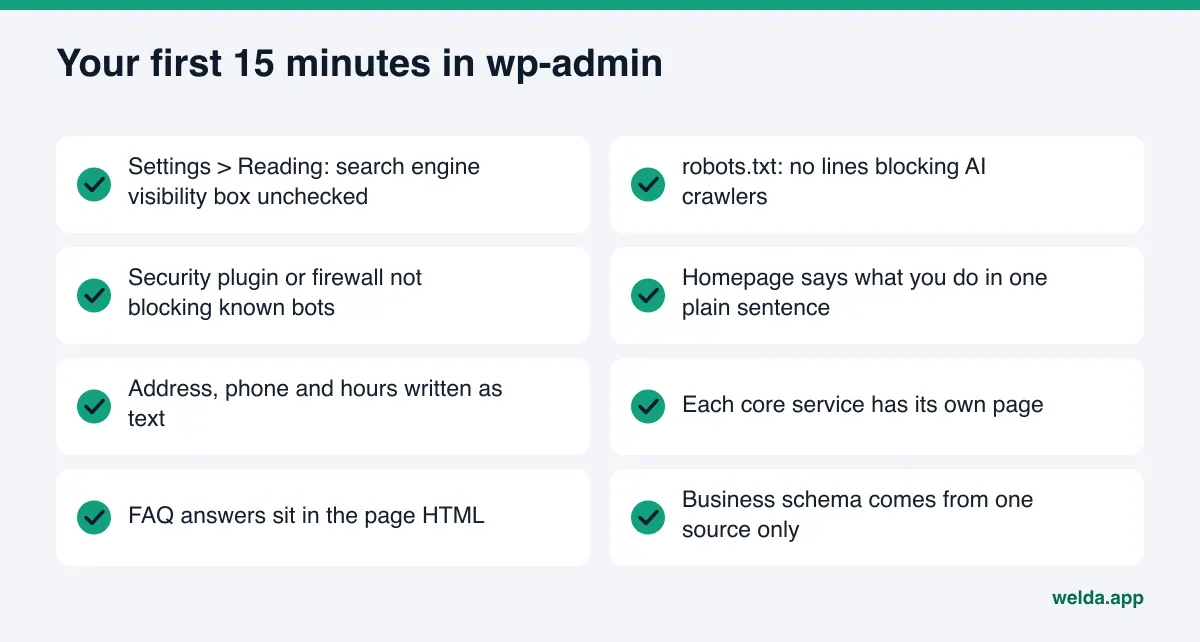
- Check search engine visibility. In Settings > Reading, make sure "Discourage search engines from indexing this site" is unchecked. According to the WordPress documentation, the box adds a "noindex, nofollow" robots meta tag to your pages and asks search engines not to index the site.
- Open your robots.txt. Visit yourdomain.com/robots.txt. Look for lines that block AI crawlers by name, or a blanket "Disallow: /". If a plugin generates the file, change it in that plugin's settings rather than on the server.
- Check your security layer. If your security plugin or your host's firewall has a bot-blocking or "block AI bots" option, find out whether search and answer engine crawlers are exempt. If you are not sure, ask your host.
- Rewrite the top of the homepage. Your title tag and meta description should name what you do, where, and for whom. The main headline should be a real H1. Put two or three plain sentences under it. A slider slogan does not do this job.
- Give every core service its own page. Instead of seven services listed in one paragraph, give each one a page: what it is, who it is for, how it works, common questions. We cover this in depth in service pages AI can quote.
- Turn contact details into text. Address, phone and hours belong in the footer and on the contact page as plain text. Link your Google Business Profile, Yelp listing and social accounts from the site.
- Consolidate structured data. If both your theme and a plugin output LocalBusiness schema, keep one. Make sure it matches your Google Business Profile exactly.
- Make FAQ answers plain text. Accordions are fine as long as the answers are in the page HTML. Write down the questions people actually ask on the phone.
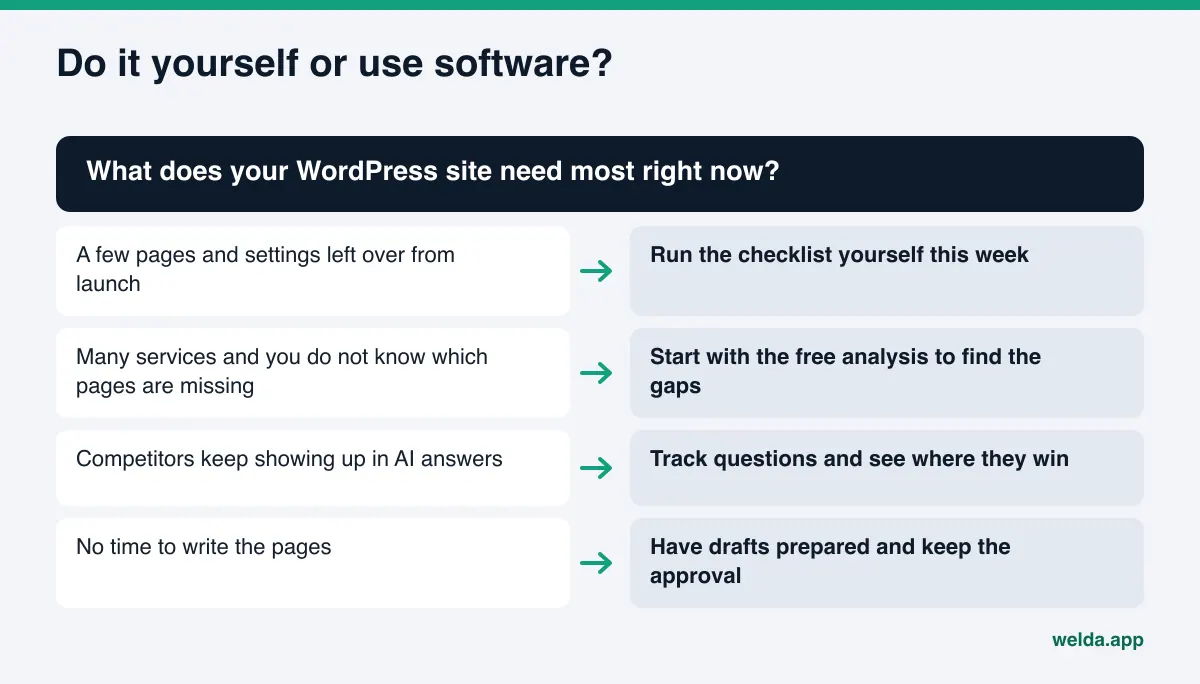
You can work through these yourself. If you want free tools to help with individual checks, our roundup of free AEO tools shows which tool fits which job.
Where to look in the WordPress dashboard
The table maps what the free analysis checks to where you would fix it in WordPress. Menu names vary with your theme and plugins, so treat it as a map rather than exact directions.
| Check | Where to look in WordPress | What good looks like |
|---|---|---|
| Crawler access | Settings > Reading; robots.txt; security plugin | Box unchecked, AI crawlers not blocked |
| Title and meta description | SEO fields under the page editor | Service, location and audience, short and clear |
| Main heading | Page editor, heading block | One H1 per page, a real heading element |
| Business schema | Theme options and SEO plugin | One source, same address and phone as your profiles |
| Address, phone, hours | Footer and contact page | Plain text, not an image |
| Services | Pages list | A full page for each core service |
| FAQ | Bottom of relevant pages | Real customer questions, short answers |
| Page speed | Hosting, theme, image sizes | No heavy sliders or unused plugins |
Some rows are content work: page copy and FAQs. Others are infrastructure: robots.txt, theme settings and plugin choices. That split matters in the next section.
Read your page the way a crawler does
You do not need special software to see whether a page's text is readable. Three quick tests catch most problems.
- Search the page source. Open the page, view the source, and search for a sentence from your headline. If it is not in the source, a script adds it after load, and some crawlers may never see it.
- Copy the page into a text file. Select everything and paste it into a plain document. If your hours, pricing approach or service list are missing from the paste, they are stuck in images.
- Check collapsed content. Text inside tabs and accordions is fine if it is already in the source. If it only loads from the server on click, it may be missing for answer engines.
Run these tests on the homepage, your two most important service pages and the contact page. The results tell you which pages need rewriting first.
How does Welda connect to a WordPress site?
Welda is software that measures where a business shows up in AI answers and fills the gaps on the business's behalf. Most of those gaps are content on your own site, so being able to open drafts on your site is central to the work. On WordPress, the connection needs no plugin and no code. It uses two things: a separate Editor user and an application password for that user.
Why a separate user? You should never share your own admin login with anyone. A dedicated user also keeps the record clean: in your dashboard you can see which drafts came from that account.
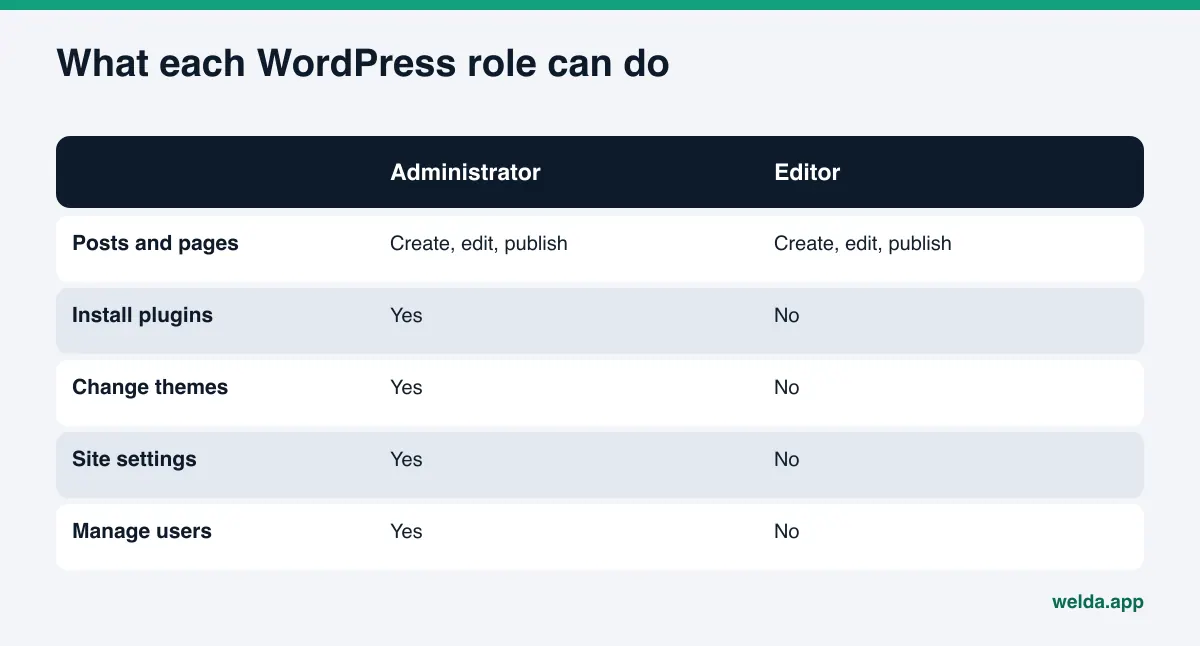
Why the Editor role? The WordPress roles documentation describes an Editor as someone who can publish and manage posts, including other users' posts, while an Administrator has access to all administration features. Content work only needs Editor. Installing plugins, switching themes, changing site settings and managing users are not part of that role, so your site's foundation stays under your control.
Why an application password? Application passwords arrived in WordPress core with version 5.6. The core team's integration guide explains that you generate them on the Edit User screen, where you can also view and revoke existing ones, and that the feature is available by default on sites served over HTTPS. The password is used only for this connection. To disconnect, you revoke it; the user's normal login and your own account are unaffected.
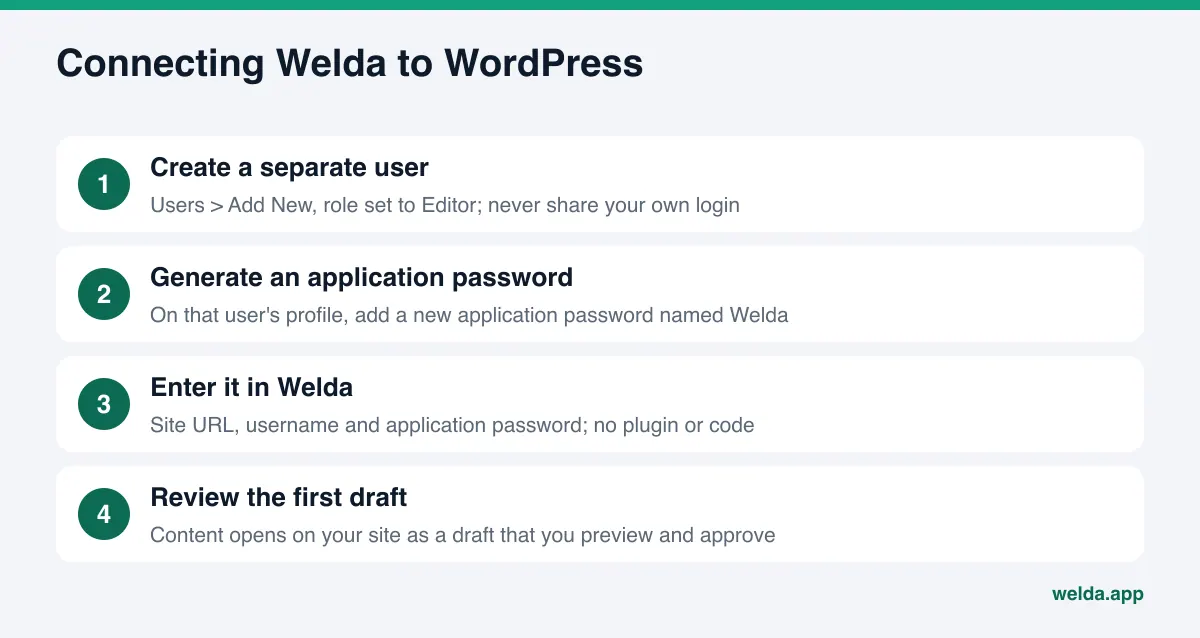
Once connected, content Welda prepares opens on your site as a draft. Nothing live changes on its own. You preview the draft in WordPress, in your own theme, and it goes live when you approve it. The content always lives on your site. Welda does not host your pages or publish a copy somewhere else.
From draft to live: what the approval flow looks like
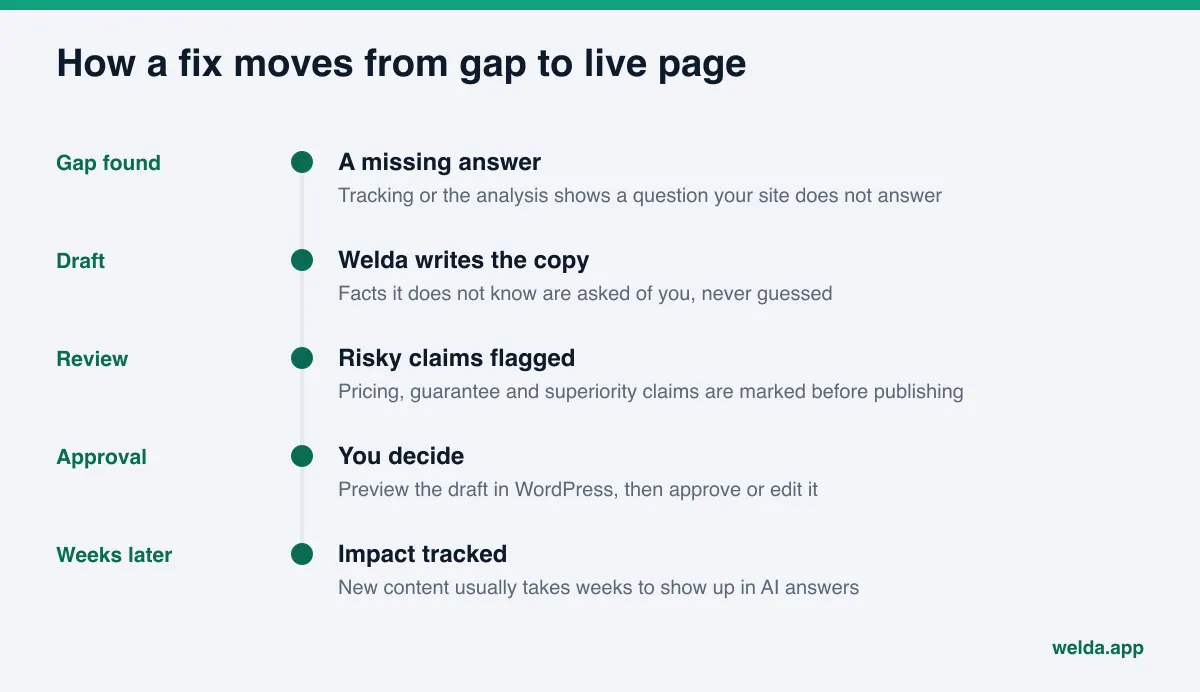
The connection is only as good as the workflow behind it. When the Welda dashboard finds a gap, for example a customer question where your name does not appear and your site has no answer, it lands on the to-do list. Welda drafts the copy. If the copy depends on a fact it does not know, such as whether you take evening appointments or which neighborhoods you serve, it does not guess. It asks you and waits.
The to-do list is where this comes together. At the top sits the information Welda needs from you. Below that are drafts waiting for approval and tasks that have to be done by hand. With WordPress connected, pages and FAQs go to your site as drafts. Tasks the connection cannot reach stay on the list as manual work, with ready-to-paste copy next to them. Editing robots.txt, fixing a theme setting or consolidating schema output are outside the Editor role, so you or your web person apply them.
Before anything is published, Welda's compliance check flags risky patterns: pricing statements, guarantees, superiority claims such as "best in town", and wording that sounds like a diagnosis or treatment recommendation in health care. This is a reminder, not legal advice, and it has not been reviewed by legal counsel. In health care nothing is auto-published; every draft comes to you for approval, and patient data is never sent to AI.
To see whether the work is paying off, Welda asks the questions your customers would ask to ChatGPT, Gemini, Perplexity and Google AI three times each, and tracks which questions mention you and in what position. A before-and-after view and a one-page monthly report show the change. Our AI visibility report template walks through how to read a report like that.
A plain note on availability: the Welda dashboard is in early access and is opening first to businesses in Turkey. Regular tracking across all four engines is being added during early access, and sample dashboard screens use representative data. What anyone can use today is the free site analysis, which works in English. Pricing is discussed in an early access conversation.
A worked example: drafting a service page
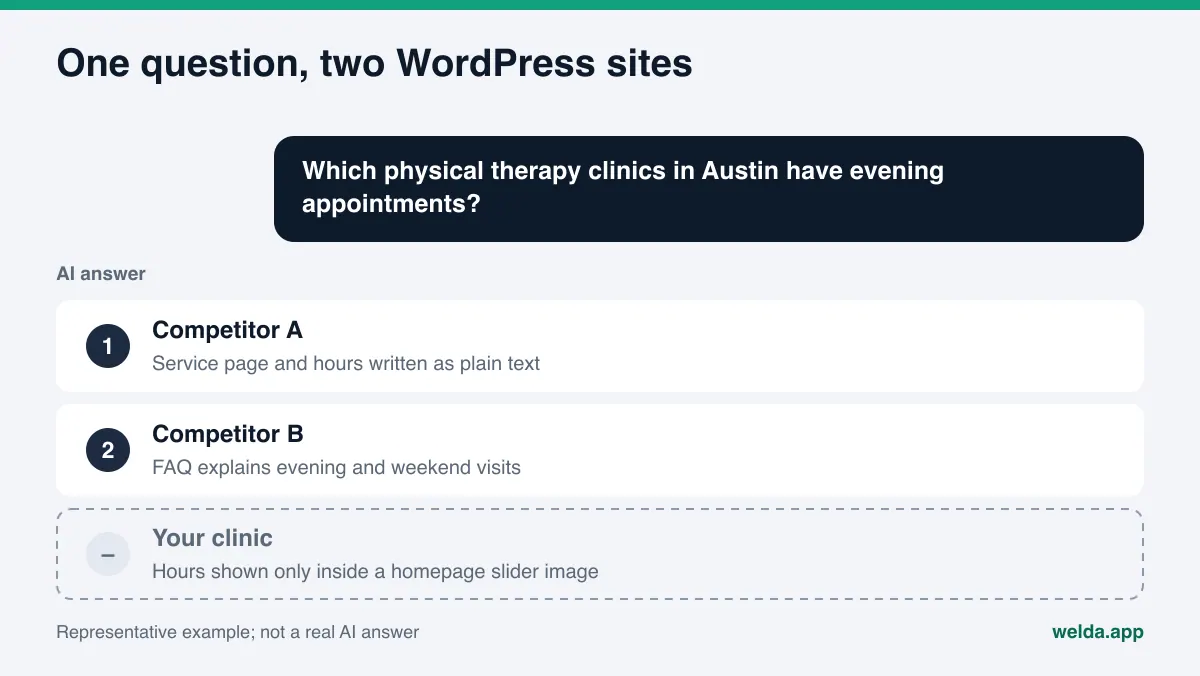
Back to the example at the top. Picture a physical therapy clinic with a WordPress site. Its "Services" page lists seven treatments in one paragraph, and its hours appear only on a homepage slider. When people ask for a clinic with evening appointments, the AI answer names two competitors and skips this one.
Two tasks land on the list. First, write the hours as text in the footer and on the contact page. Second, give the most-requested treatment its own page. Welda drafts that page: what the treatment is, who it suits, what a visit looks like, and common questions. Details it cannot confirm, such as which evenings the clinic is open, which insurance questions to cover, or how booking works, show up as questions for the clinic. Once answered, they are worked into the draft.
The draft opens in WordPress. The clinic decides on layout, images and menu placement. Because this is health care, the draft is never auto-published, and any wording that sounds like a promised outcome is flagged. Nothing on the live site changes until someone at the clinic approves it.
Limits: what Welda does not do
The WordPress connection makes the work easier. It does not make every problem disappear. To be clear:
- No ranking guarantee. AI answers draw on many sources and change over time. Nobody can promise you a spot in ChatGPT.
- No invented facts. Welda works from your site and from what you tell it. It does not make up services, prices or hours.
- No unapproved sensitive content. Drafts stay drafts until you decide.
- No access to your site's foundation. The Editor role cannot touch plugins, themes or settings. robots.txt, firewall and theme fixes come to you as instructions and ready copy.
- No fake reviews. Welda can draft review responses. Reviews themselves come from real customers.
- Some work stays with you. Handling negative reviews, managing directory listings such as Yelp, BBB or Healthgrades, and press outreach remain in your hands.
- Results take time. New content usually takes weeks to show up in AI answers. No change in week one is normal.
WordPress AEO checklist: is your site ready?
If you can answer yes to each question, your site has a solid base for answer engines. Every no or "not sure" is a task.
- Is "Discourage search engines" unchecked in Settings > Reading?
- Is robots.txt free of lines that block AI crawlers?
- Have you confirmed your security settings do not block known bots?
- Does the top of your homepage say what you do, where, and for whom?
- Does each core service have its own page?
- Are address, phone and hours plain text and identical to your Google Business Profile?
- Does business schema come from a single source?
- Are your FAQs built from real customer questions?
- Do outside services that add content get Editor access rather than Administrator?
That last one is good practice for any service touching your site, not only Welda: give the lowest permission that gets the job done. When you compare software, our list of AEO tool features covers what else to look for.
Frequently asked questions
Is WordPress AEO different from regular SEO?
The foundation is shared: crawler access, clean headings and readable text. The difference is that answer engines pull answers straight from your page. That puts more weight on clear service descriptions, FAQs and consistent business details.
Do I need to install a plugin to connect Welda?
No. The connection uses WordPress's built-in application passwords on a separate Editor user. No code or plugin is added to your site.
Will Welda publish anything without my knowledge?
No. Content opens as a draft and goes live when you approve it. In health care, every piece of content goes through an approval queue.
Can I give Welda a lower role than Editor?
Per the WordPress documentation, an Author can only publish and manage their own posts, and a Contributor can write but not publish. AEO fixes usually involve your existing pages, such as the homepage, service pages and contact page, so drafting on them needs the Editor role. Plugins, themes and settings still stay with you.
How do I disconnect?
Revoke the application password on the Welda user's profile. You can delete the user as well. Your own account is not affected.
My site is not on WordPress. What then?
For systems without a connection, Welda delivers a ready-to-apply package and the changes are made by hand. The free analysis works on any website.
Does the free analysis check anything WordPress-specific?
The analysis is platform-agnostic. It looks at crawler access, title and description, structured data, contact details, FAQs, how clearly services are described and page speed, and explains how to fix each gap. The table above shows where to apply those fixes in WordPress.
Next step: see your site the way an answer engine does
The quickest way to start on WordPress AEO is to see what AI systems read from your site today. The free AI visibility analysis reads your homepage and a few inner pages, scores technical and content readiness out of 100, explains each gap and how to fix it, suggests ready-to-use homepage copy, and gives you a fix package to add to your site. It is free once per site; the results link arrives by email and stays open for 14 days.